Fundamentals of Computer Hardware & Storage
From the Cyber 8.1-8.5 curriculum
TL;DR
Your computer's brain is the CPU, which works with memory (RAM) to run programs. Storage devices (like SSDs/HDDs) keep your files safe when the power's off. Understanding these parts helps you grasp how computers work and stay secure.
1. The Mental Model
Think of your computer as a kitchen: the chef is the CPU, the countertop is RAM, and the pantry is your storage. Ingredients are data, and recipes are programs.
2. The Core Material
Computers are essentially machines that process information. They do this using a combination of hardware components, each with a specific role.
The Central Processing Unit (CPU)
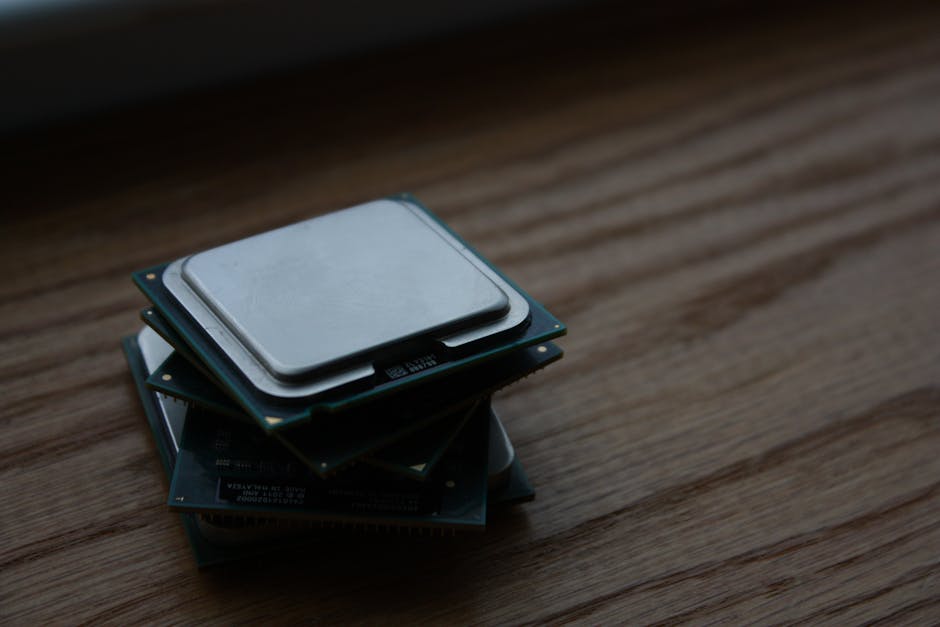
Photo by Shawn Stutzman on Pexels
The CPU is often called the "brain" of the computer. It's responsible for executing instructions from programs, performing calculations, and managing the flow of data. When you click an icon, type a letter, or open a browser, the CPU is doing the heavy lifting. Its speed is usually measured in gigahertz (GHz), indicating how many instruction cycles it can perform per second.
Memory (RAM)

Photo by William Warby on Pexels
RAM (Random Access Memory) is your computer's short-term memory. When the CPU needs to work on data or run a program, it loads that information from storage into RAM. Think of it as a temporary workspace. RAM is very fast, but it's volatile, meaning all data stored in it is lost when the computer is turned off. The more RAM you have, the more programs and data your computer can handle simultaneously without slowing down.
Storage Devices (Permanent Storage)

Photo by Arina Krasnikova on Pexels
Unlike RAM, storage devices keep your data even when the computer is off. There are two main types you'll encounter:
- Hard Disk Drives (HDDs): These are older, mechanical drives that store data on spinning magnetic platters. They're generally cheaper and offer large storage capacities but are slower and more fragile than SSDs.
- Solid State Drives (SSDs): These are newer, faster drives that store data on flash memory chips, similar to a USB drive. They have no moving parts, making them more durable and much quicker for reading and writing data, but they tend to be more expensive per gigabyte.
How Hardware Components Interact

Photo by Pok Rie on Pexels
Here's a simplified view of how these main components work together to run a program:
graph TD
    A["You start a Program (e.g., Browser)"] --> B["Program (and its data) loaded from Storage (SSD/HDD)"]
    B --> C["...into RAM (Memory)"]
    C --> D["CPU fetches instructions/data from RAM"]
    D --> E["CPU processes instructions/data"]
    E --> C
    E --> F{"Is data needed permanently?"}
    F -- "Yes" --> G["Data saved to Storage (SSD/HDD)"]
    F -- "No" --> H["Data remains in RAM (lost on shutdown)"]
Input/Output (I/O) Devices
These devices allow you to interact with the computer (input) and for the computer to present information to you (output).
* Input: Keyboard, mouse, microphone, webcam.
* Output: Monitor, speakers, printer.
3. Worked Example
Imagine you're editing a large video file.
- The video file is stored on your SSD (storage).
- When you open your video editing software, the program itself, along with parts of the video file you're actively working on, get loaded from the SSD into your RAM.
- The CPU processes your edits (like cutting scenes or adding effects) by constantly fetching instructions from the editing software in RAM and applying them to the video data also in RAM.
- If you have a lot of RAM, the CPU can work with more of the video data at once, making the process smoother. If you have too little, the computer might have to constantly swap data between RAM and the slower SSD, causing lag.
- When you save your edited video, the CPU sends the modified data from RAM back to the SSD for permanent storage.
4. Key Takeaways
- The CPU is your computer's "brain," executing instructions and calculations.
- RAM is fast, temporary memory essential for running programs; it's wiped clean when powered off.
- Storage devices (SSDs, HDDs) provide permanent data storage, even when the computer is off.
- SSDs are faster and more durable than HDDs but generally cost more per gigabyte.
- All hardware components work together, with data constantly moving between them to perform tasks.
- Input/Output devices are how you communicate with the computer and how it communicates back to you.
Common mistakes to avoid:
- Confusing RAM (temporary) with storage (permanent).
- Thinking more CPU speed automatically means a faster computer if other components are bottlenecks.
- Underestimating the impact of slow storage on overall system performance.
- Forgetting that data in RAM is gone when you power down, so always save your work!
5. Now Try It
List five different tasks you perform on a computer daily, and for each, identify which core hardware component (CPU, RAM, or Storage) is most heavily utilized during that specific task. For example, "Watching a YouTube video" heavily uses RAM and CPU. What would success look like? You'd have a list of five tasks with a brief, correct explanation for each, demonstrating your understanding of component roles.
Frequently asked about Fundamentals of Computer Hardware & Storage
Study this next
Get the full Cyber 8.1-8.5 curriculum
Clone the complete plan to your dashboard for unlimited AI-generated notes, practice quizzes, and a personalised revision schedule.
Save this course free