Introduction to Computer Systems & Configuration
From the computer science curriculum
Introduction to Computer Systems & Configuration
TL;DR
A computer system is a collection of interconnected parts working together to perform tasks. Understanding its components helps you troubleshoot problems and optimize performance. You'll learn about hardware, software, and how they interact to make your computer run.
1. The Mental Model
Think of your computer as a team: the hardware is the body and tools, while the software is the brain and instructions. They both need to be present and working well together to achieve anything useful.
2. The Core Material
Your computer isn't just one big piece; it's a carefully assembled system of hardware components that software controls.
2.1 Hardware: The Physical Parts
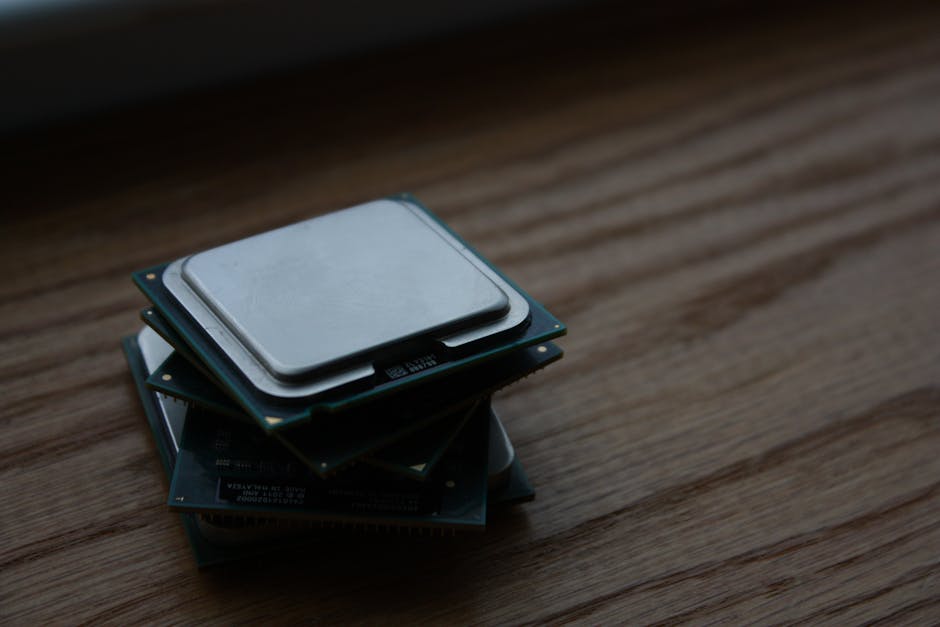
Photo by Shawn Stutzman on Pexels
Hardware refers to all the physical, tangible parts of a computer system. You can touch them!
- CPU (Central Processing Unit): Often called the "brain" of the computer. It executes instructions and performs calculations. A faster CPU generally means your computer can process information quicker.
- RAM (Random Access Memory): This is your computer's short-term memory. It stores data that the CPU needs to access quickly right now. More RAM means your computer can handle more tasks simultaneously without slowing down.
- Storage (HDD/SSD): This is your computer's long-term memory, where your operating system, programs, and files are permanently stored.
- HDD (Hard Disk Drive): Older, slower, mechanical, but usually cheaper for large capacities.
- SSD (Solid State Drive): Newer, much faster, more durable, but generally more expensive.
- Motherboard: The main circuit board that connects all the other hardware components. It allows them to communicate with each other.
- GPU (Graphics Processing Unit): Processes images and videos. While all computers have some graphics capability, a dedicated GPU is crucial for gaming, video editing, or graphic design.
- Peripherals: Devices connected to the computer that aren't part of its core internal structure, like keyboards, mice, monitors, and printers.
2.2 Software: The Instructions

Photo by Markus Spiske on Pexels
Software is a set of instructions that tells the hardware what to do. You can't touch software, but you interact with it constantly.
- Operating System (OS): The most critical piece of software. It manages all the hardware and software resources, allowing you to interact with the computer. Examples include Windows, macOS, and Linux.
- Applications (Apps): Programs designed for specific tasks, like web browsers (Chrome, Firefox), word processors (Microsoft Word), games, or photo editors.
- Drivers: Special software that allows the operating system to communicate with specific hardware components (e.g., your graphics card needs a graphics driver).
2.3 Configuration: Putting It All Together
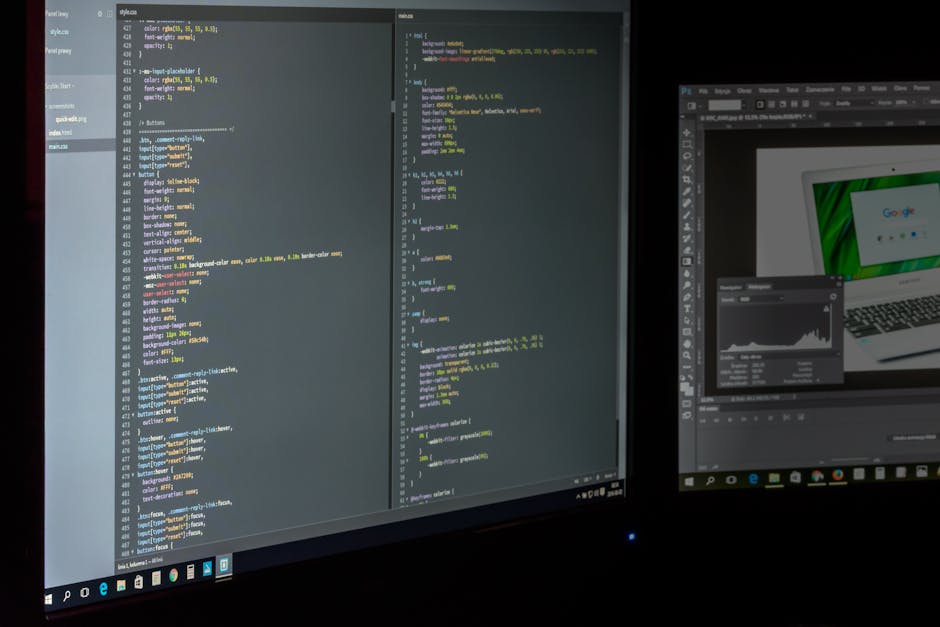
Photo by Pixabay on Pexels
Configuration refers to how your hardware components are selected and arranged, and how your software is set up to work optimally. For example, having enough RAM for your tasks, or installing the correct drivers for your printer.
Here's a simplified view of how hardware and software work together:
graph TD
    User["You (The User)"] -->|Inputs commands| Application["Application Software (e.g., Browser)"]
    Application -->|Requests resources/actions| OperatingSystem["Operating System (OS)"]
    OperatingSystem -->|Manages & translates| HardwareComponents["Hardware Components (CPU, RAM, Storage, etc.)"]
    HardwareComponents -->|Executes/processes| OperatingSystem
    OperatingSystem -->|Sends results| Application
    Application -->|Displays info| User
3. Worked Example
Let's imagine you're trying to play a new, graphically intensive video game.
- You click the game icon (Application Software).
- The Operating System (Windows/macOS) loads the game into RAM.
- The game's complex graphics instructions are sent to the GPU for processing.
- The CPU handles game logic, AI, and other calculations, often fetching data from RAM and occasionally from Storage (if new game levels or assets are needed).
- The GPU renders the frames and sends them via the Motherboard to your Monitor (a Peripheral) for you to see.
- Your Mouse/Keyboard (Peripherals) send your inputs back to the CPU via the Motherboard, and the cycle continues.
If your game runs slowly, it could be a configuration issue: perhaps your GPU isn't powerful enough, you don't have enough RAM, or your storage is too slow (if it's constantly loading new assets).
4. Key Takeaways
- A computer system comprises both physical hardware and instructional software.
- Hardware includes the CPU, RAM, storage, motherboard, GPU, and peripherals.
- Software includes the Operating System, applications, and drivers.
- The Operating System acts as the bridge between hardware and application software.
- "Configuration" refers to how these components are set up and interact for optimal performance.
- Adequate RAM and a fast CPU/GPU are crucial for demanding tasks like gaming or video editing.
Common Mistakes to Avoid:
- Don't confuse RAM (short-term memory) with storage (long-term memory).
- Thinking that more hardware alone fixes all problems; software configuration and drivers are also vital.
- Neglecting to update your drivers, which can cause hardware performance issues.
- Assuming a slow computer always needs new hardware; sometimes it's just too many background applications.
5. Now Try It
Spend 15 minutes investigating the specifications of your current computer. Find out:
1. What's your CPU model?
2. How much RAM do you have?
3. What type of storage do you have (HDD or SSD) and how much capacity?
4. Which operating system are you running?
You can usually find this information in your system settings (e.g., "About" or "System Information" on Windows/macOS/Linux).
Success looks like being able to list these four key pieces of information about your own machine.
Frequently asked about Introduction to Computer Systems & Configuration
Study this next
Get the full computer science curriculum
Clone the complete plan to your dashboard for unlimited AI-generated notes, practice quizzes, and a personalised revision schedule.
Create Free Account