Operating Systems Essentials
From the I'm a Diploma cst 2nd semester students. My exam in 30 days, curriculum
TL;DR
Operating Systems (OS) are the core software managing your computer's hardware and software resources, making it usable and efficient. They handle everything from running programs and storing files to keeping your data safe. Understanding OS essentials helps you grasp how computers function and how to optimize their performance.
1. The Mental Model
Think of an OS as the conductor of an orchestra: it doesn't play the instruments itself, but it ensures all sections (hardware and software) work together harmoniously to produce the desired music (your computer's functions). Without the conductor, everything would be chaos.
2. The Core Material
An Operating System (OS) is the fundamental software that manages computer hardware and software resources and provides common services for computer programs. It acts as an intermediary between you (the user) and the computer hardware.
What an OS Does (Key Functions)

Photo by Antonio Borriello on Pexels
- Process Management: The OS manages all the programs (processes) running on your computer. It decides which process gets the CPU, for how long, and in what order. This is crucial for multitasking.
- Memory Management: It allocates and deallocates memory to various processes and programs. This ensures that programs don't interfere with each other's memory space and that memory is used efficiently.
- File Management: The OS organizes files and directories on storage devices (like your hard drive). It handles creating, deleting, accessing, and protecting files.
- Device Management: It controls and coordinates input/output (I/O) devices such as printers, keyboards, and mice. It provides drivers that allow applications to interact with these devices.
- Security/Protection: The OS protects system resources and user data from unauthorized access or malicious programs. It implements features like passwords and access controls.
- User Interface (UI): It provides a way for you to interact with the computer, either through a Graphical User Interface (GUI) like Windows or macOS, or a Command Line Interface (CLI) like Linux terminals.
Types of Operating Systems
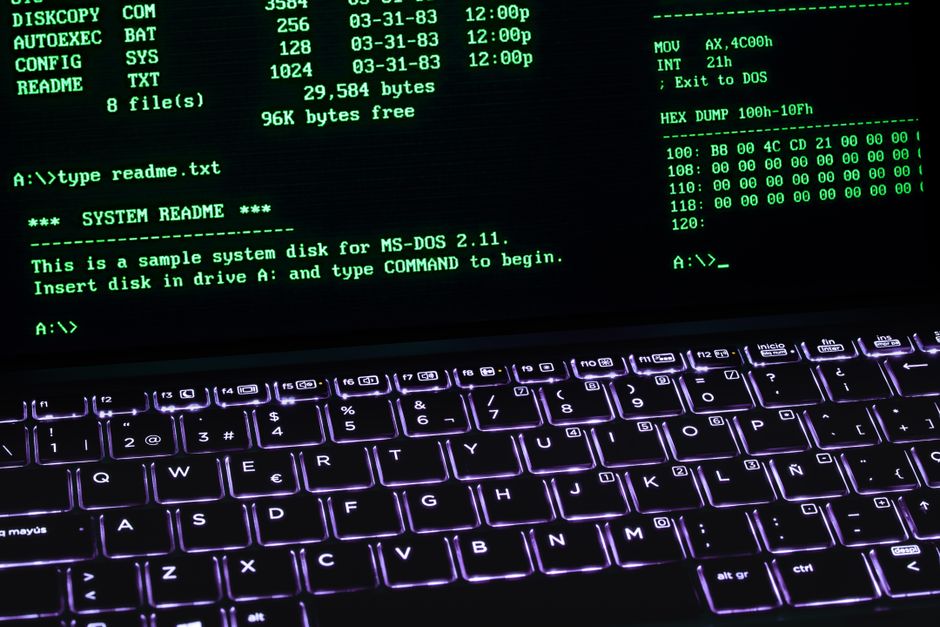
Photo by Rafael Minguet Delgado on Pexels
- Batch OS: Processes jobs in batches without direct user interaction. (e.g., early mainframe systems)
- Time-Sharing OS: Allows multiple users to share a computer simultaneously by rapidly switching between users. (e.g., UNIX, Linux)
- Distributed OS: Manages a group of independent computers and makes them appear as a single coherent system. (e.g., modern cloud computing environments)
- Network OS: Runs on a server and manages data, users, security, applications, and other networking functions. (e.g., Windows Server, Novell NetWare)
- Real-Time OS (RTOS): Designed for applications that require precise and consistent timing, often in embedded systems. (e.g., systems for industrial control, medical imaging)
Process States

Photo by Jeswin Thomas on Pexels
A process typically moves through several states during its lifetime. Understanding these helps explain how the OS manages concurrent execution.
graph TD
    A["New (Process created)"] --> B["Ready (Waiting for CPU)"]
    B --> C["Running (Executing on CPU)"]
    C --> D["Waiting (Waiting for I/O or event)"]
    C --> B
    D --> B
    C --> E["Terminated (Process finished)"]
- New: The process is being created.
- Ready: The process is waiting to be assigned to a processor.
- Running: Instructions are being executed.
- Waiting: The process is waiting for some event to occur (e.g., I/O completion, signal).
- Terminated: The process has finished execution.
CPU Scheduling

Photo by Shawn Stutzman on Pexels
CPU scheduling is how the OS decides which process in the Ready state should be executed next by the CPU. Common algorithms include:
- First-Come, First-Served (FCFS): Simplest; processes are executed in the order they arrive.
- Shortest Job Next (SJN)/Shortest Remaining Time First (SRTF): Prioritizes jobs with the shortest execution time.
- Round Robin (RR): Each process gets a small unit of CPU time (time quantum) in a circular fashion. Good for time-sharing.
- Priority Scheduling: Processes are executed based on their assigned priority.
3. Worked Example
Let's consider a simple scenario for CPU scheduling using the Round Robin (RR) algorithm.
Suppose we have three processes (P1, P2, P3) with the following burst times (time needed to complete execution on the CPU):
- P1: 10 units
- P2: 4 units
- P3: 6 units
And our time quantum for Round Robin is 3 units.
Here's how they'd be scheduled:
- Time 0-3: P1 runs for 3 units. Remaining for P1: 7 units. (P1, P2, P3 are in ready queue, P1 runs)
- Time 3-6: P2 runs for 3 units. Remaining for P2: 1 unit. (P2, P3, P1 are in ready queue, P2 runs)
- Time 6-9: P3 runs for 3 units. Remaining for P3: 3 units. (P3, P1, P2 are in ready queue, P3 runs)
- Time 9-12: P1 runs for 3 units. Remaining for P1: 4 units. (P1, P2, P3 are in ready queue, P1 runs)
- Time 12-13: P2 runs for 1 unit. P2 completes! (P2 is removed, P3, P1 are in ready queue, P2 runs and finishes)
- Time 13-16: P3 runs for 3 units. P3 completes! (P3 is removed, P1 is in ready queue, P3 runs and finishes)
- Time 16-19: P1 runs for 3 units. Remaining for P1: 1 unit. (P1 is in ready queue, P1 runs)
- Time 19-20: P1 runs for 1 unit. P1 completes! (P1 is removed, no more processes)
The total execution time for all processes is 20 units. This shows how RR provides a fair share of CPU time, allowing all processes to make progress, even if it might take longer for individual processes compared to FCFS.
4. Key Takeaways
- The OS is the core software managing all computer resources, acting as an intermediary between you and the hardware.
- Key functions include process, memory, file, and device management, along with security and providing a user interface.
- Different OS types like time-sharing or real-time OS are optimized for specific use cases.
- Processes cycle through states like New, Ready, Running, Waiting, and Terminated, managed by the OS.
- CPU scheduling algorithms like Round Robin ensure fair and efficient allocation of CPU time among processes.
- Memory management prevents programs from interfering with each other and uses RAM efficiently.
Common Mistakes to Avoid:
- Don't confuse the OS with application software; the OS provides the platform for apps.
- Forgetting that the OS is constantly performing multiple functions simultaneously (e.g., managing files while running a program).
- Underestimating the role of device drivers, which are crucial for the OS to communicate with hardware.
- Misunderstanding that "waiting" for a process doesn't mean it's idle; it's waiting for an event like I/O, not necessarily the CPU.
5. Now Try It
Imagine you're designing a simple operating system for a smart microwave. List three essential OS functions it would need and briefly explain why each is important for the microwave's operation.
- What to do: Think about the microwave's core tasks (heating food, setting time, responding to buttons) and map these to OS functions.
- What success looks like: You've identified three relevant OS functions (e.g., process management for cooking timer, device management for keypad, etc.) and provided a concise, clear reason for each.
Frequently asked about Operating Systems Essentials
Study this next
Get the full I'm a Diploma cst 2nd semester students. My exam in 30 days, curriculum
Clone the complete plan to your dashboard for unlimited AI-generated notes, practice quizzes, and a personalised revision schedule.
Save this course free