Operating Systems and Software
From the Computer Applications Technology curriculum
TL;DR
An Operating System (OS) is the master program that manages all the hardware and software on your computer. Software refers to all the programs, applications, and instructions that tell your computer what to do. Together, the OS and various software make your computer useful and allow you to perform tasks.
1. The Mental Model
Think of your computer's Operating System (OS) as the "brain" or "manager" of the computer, handling everything behind the scenes. Software is like the "tools" or "apps" you use on your computer to get things done. The OS makes sure the tools can run and talk to the computer's parts.
2. The Core Material
Your computer needs instructions to do anything. These instructions come in two main forms: the Operating System and other software.
What is an Operating System (OS)?
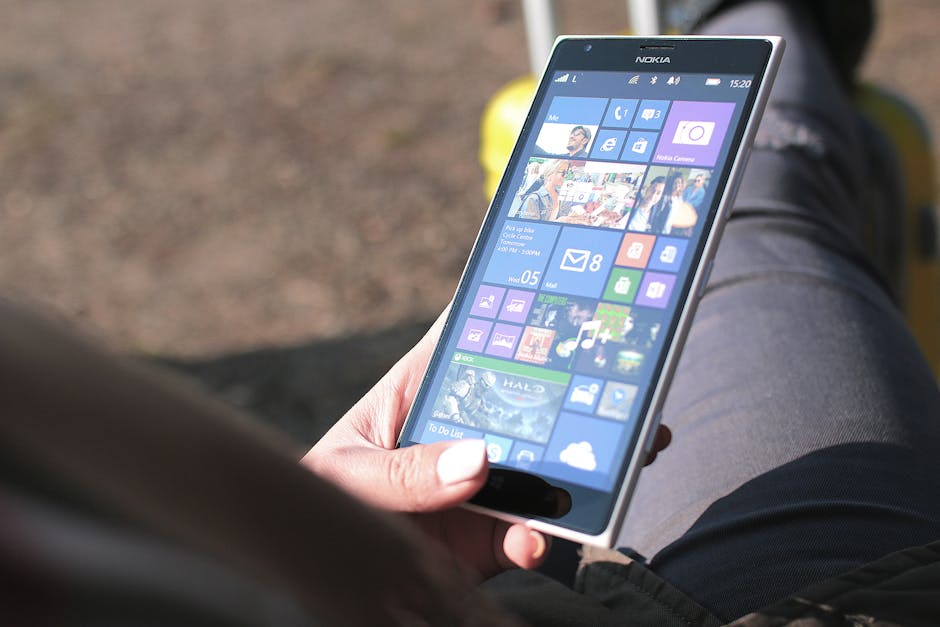
Photo by JÉSHOOTS on Pexels
The Operating System (OS) is the most important software on your computer. It's the first program that loads when you turn on your computer and it manages all the other programs and hardware. Without an OS, your computer is just a collection of parts that can't communicate or do anything useful.
Here's what an OS typically does:
* Manages hardware: It controls your keyboard, mouse, printer, hard drive, and other connected devices.
* Manages software (applications): It allows other programs (like web browsers or word processors) to run and allocates resources like memory and processor time.
* Manages files: It organises and stores your files and folders.
* Manages memory: It allocates memory to different programs as needed.
* Provides a user interface: This is how you interact with the computer, whether through graphical icons (like on Windows or macOS) or text commands.
Common examples of operating systems include:
* Desktop/Laptop: Microsoft Windows, macOS, Linux
* Mobile: Android, iOS
Types of Software
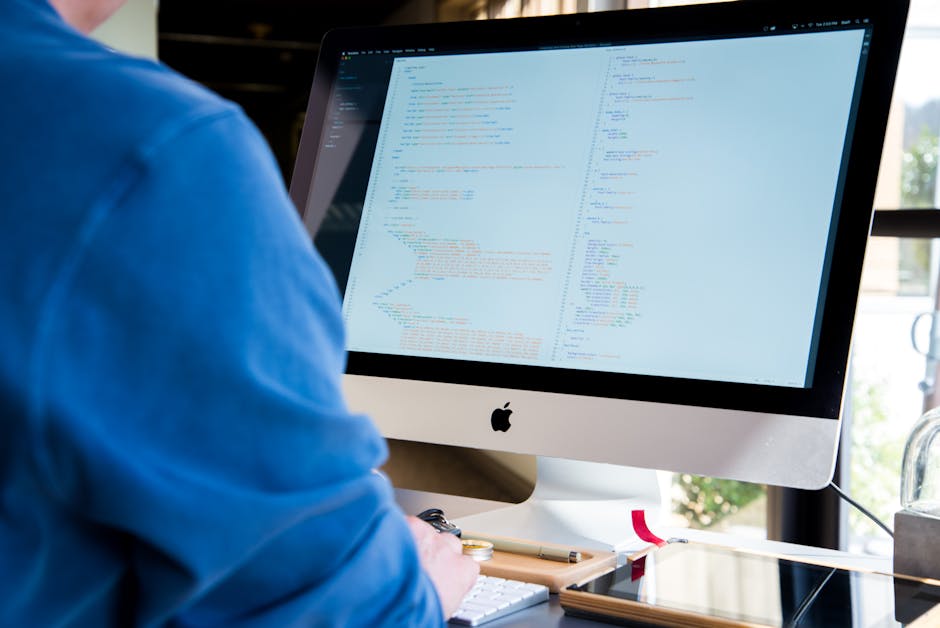
Photo by Lee Campbell on Pexels
Beyond the OS, there are many other types of software that make your computer powerful. We generally categorise them into:
-
System Software: This includes the OS itself and other utility programs that help the computer run efficiently. Think of things like device drivers (which help the OS talk to hardware), antivirus software, and disk cleanup tools. These are generally behind-the-scenes.
-
Application Software: These are the programs you use to perform specific tasks. This is what most people think of when they hear "software."
Here are some examples of application software:
* Productivity Software: Word processors (Microsoft Word, Google Docs), spreadsheets (Excel, Google Sheets), presentation software (PowerPoint, Google Slides).
* Communication Software: Email clients (Outlook), web browsers (Chrome, Firefox, Edge), messaging apps (WhatsApp, Zoom).
* Creative Software: Image editing (Photoshop, GIMP), video editing (Adobe Premiere Pro, DaVinci Resolve), graphic design.
* Entertainment Software: Games, media players (VLC, Spotify).
Here's a simple way to visualise the relationship between your hardware, the OS, and application software:
graph TD
    User["You (the user)"]
    Applications["Application Software (e.g., Word, Chrome)"]
    OperatingSystem["Operating System (OS) (e.g., Windows, macOS)"]
    Hardware["Computer Hardware (e.g., CPU, RAM, Disk)"]

    User --> Applications
    Applications --> OperatingSystem
    OperatingSystem --> Hardware
How Software and Hardware Interact

Photo by Vitaly Gariev on Pexels
When you launch an application, the OS loads it into the computer's memory (RAM). As you use the application, it sends requests to the OS. For example, if you save a document in Microsoft Word, Word tells the OS to save the file to the hard drive. The OS then handles the actual process of writing the data to the hard drive, making sure it's stored correctly and can be retrieved later.
3. Worked Example
Let's say you want to write an essay for school using your laptop.
- You turn on your laptop: The computer's BIOS/UEFI (firmware) starts up, then loads the Operating System (let's say Windows) from your hard drive into the RAM. Windows then takes over, showing you the desktop.
- You open a word processor: You click on the icon for Microsoft Word (an application software). Windows loads Word into the computer's RAM.
- You start typing: As you type, the keyboard sends signals to the OS. The OS interprets these signals and tells Word what characters to display on the screen. Word then draws these characters.
- You save your work: When you click "Save," Word doesn't directly talk to the hard drive. Instead, Word sends a request to the Operating System saying, "Please save this file with this name to this location." The OS then takes care of writing the file's data to the correct place on the hard drive.
- You print the essay: You click "Print." Word sends the print job to the Operating System. The OS communicates with the printer (using a device driver, which is part of system software), translates the document into a format the printer understands, and sends it to be printed.
In this example, the OS is constantly acting as the middleman, managing the communication between your word processor, your keyboard, your screen, your hard drive, and your printer.
4. Key Takeaways
- An Operating System (OS) is essential software that manages all computer hardware and software resources.
- The OS provides the basic interface and environment for you to interact with your computer.
- System software includes the OS and utilities that help the computer function, often running in the background.
- Application software consists of programs designed to perform specific user tasks, like writing documents or browsing the web.
- All application software relies on the OS to interact with the computer's hardware.
- Without an OS, application software cannot run, and your computer hardware is largely useless.
- Mobile devices also have operating systems, such as Android and iOS, performing similar functions.
Common mistakes you should avoid:
- Confusing an operating system with an application program; they have different roles.
- Thinking that hardware can operate without any software; it always needs instructions.
- Forgetting that device drivers are a crucial part of system software, enabling hardware communication.
- Believing that viruses are a type of operating system; they are malicious software.
5. Now Try It
Spend 15 minutes listing all the different types of software you use on your computer or phone in a typical day. For each one, identify whether it's an Operating System, System Software (utility), or Application Software. For the application software, briefly explain what specific task it helps you accomplish.
What success looks like: Your list should clearly categorise at least 8-10 different software examples, with correct explanations of their roles and types. For instance: "Google Chrome - Application Software - Used for browsing the internet." or "Windows 10 - Operating System - Manages the computer and runs other programs."
Frequently asked about Operating Systems and Software
More from Computer Applications Technology
Get the full Computer Applications Technology curriculum
Clone the complete plan to your dashboard for unlimited AI-generated notes, practice quizzes, and a personalised revision schedule.
Save this course free