Foundational Computing Concepts
TL;DR
Foundational computing concepts explain how computers process information using hardware and software to perform tasks. Understanding these basics is key to grasping how modern technology works. We'll cover data representation, hardware components, software types, and network fundamentals.
1. The Mental Model
Think of a computer as a really fast, but very dumb, assistant. It only understands simple instructions and needs every step broken down perfectly. You give it data, it processes it using its parts, and then gives you the results.
2. The Core Material
2.1 Data Representation

Photo by Google DeepMind on Pexels
Computers understand only two states: on or off. We represent this with binary, using 0s and 1s.
- Bit: A single binary digit (0 or 1).
- Byte: A group of 8 bits. This is the smallest unit of data computers typically process.
- ASCII & Unicode: Standards that assign unique numbers (which are then converted to binary) to characters (letters, numbers, symbols) so computers can display text. ASCII uses 7 bits (128 characters), Unicode uses more bits to represent a vast range of characters from different languages.
2.2 Hardware Components

Photo by Pixabay on Pexels
Hardware refers to the physical parts of a computer system.
- CPU (Central Processing Unit): The "brain" of the computer, responsible for executing instructions and performing calculations.
- Control Unit (CU): Manages and coordinates all operations.
- Arithmetic Logic Unit (ALU): Performs arithmetic (add, subtract) and logical (compare) operations.
- Registers: Small, fast storage areas within the CPU for temporary data.
- Memory:
- RAM (Random Access Memory): Volatile (loses data when power is off) temporary storage for programs and data currently being used. Faster than storage.
- ROM (Read-Only Memory): Non-volatile memory storing essential startup instructions (like BIOS/UEFI).
- Storage Devices: Non-volatile storage for long-term data.
- Hard Disk Drives (HDD): Traditional magnetic spinning platters.
- Solid State Drives (SSD): Newer, faster, flash-based storage with no moving parts.
- Input Devices: Allow users to input data (e.g., keyboard, mouse, microphone).
- Output Devices: Display or output processed data (e.g., monitor, printer, speakers).
2.3 Software Types
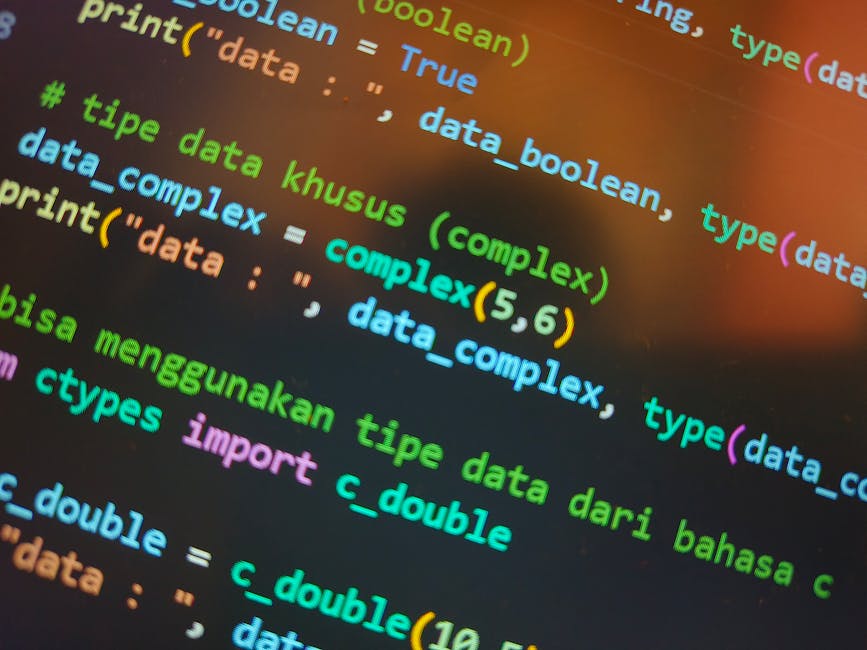
Photo by Syirwan Ainu on Pexels
Software is a set of instructions that tells the hardware what to do.
- Operating System (OS): Manages computer hardware and software resources. Examples: Windows, macOS, Linux. It's the mediator between you and the hardware.
- Application Software: Programs designed to perform specific tasks for the user. Examples: Word processors, web browsers, games.
- System Software: Programs that manage and control computer hardware and other software. Includes OS, utility software (like antivirus), and device drivers.
2.4 Networks
Networks allow computers to communicate and share resources.
- LAN (Local Area Network): Connects devices in a limited area (e.g., home, office).
- WAN (Wide Area Network): Connects devices over a large geographical area (e.g., the internet).
- IP Address: A unique numerical label assigned to each device participating in a computer network that uses the Internet Protocol for communication.
- Protocols: Sets of rules for data communication (e.g., HTTP for web browsing, TCP/IP for internet communication).
Here's a simplified view of how data flows in a computer:
graph TD
    User["User Input (Keyboard, Mouse)"] --> InputDevice["Input Device"]
    InputDevice --> RAM["RAM (Temporary Data)"]
    RAM --> CPU["CPU (Processor)"]
    CPU --> RAM
    CPU --> Storage["Storage (Long-Term Save)"]
    Storage --> RAM
    RAM --> OutputDevice["Output Device"]
    OutputDevice --> UserOutput["User Output (Screen, Printer)"]
3. Worked Example
Let's trace what happens when you type "Hello" into a word processor and save it.
- Input: You press 'H', 'e', 'l', 'l', 'o' on your keyboard. Each keypress generates a signal.
- Input Device to RAM: The keyboard sends these signals (representing ASCII/Unicode characters) to the computer. These signals are stored temporarily in RAM.
- OS & Application Software: The Operating System (e.g., Windows) and the word processor application interpret these signals. The word processor takes the character data from RAM and displays it on your monitor.
- CPU Processing: If you perform actions like bolding text, the CPU executes instructions to change the character's formatting data in RAM.
- Saving: When you click "Save," the word processor tells the Operating System to write the data (your "Hello" document) from RAM to a more permanent location, like your Solid State Drive (SSD). The OS manages this transfer.
- Output: The text "Hello" is visually displayed on your monitor (an output device) throughout this process.
4. Key Takeaways
- Computers fundamentally operate using binary (0s and 1s) to represent all information.
- Hardware includes the physical components like the CPU (the brain), RAM (short-term memory), and storage (long-term memory).
- Software provides instructions; the OS manages the hardware, while applications perform user-specific tasks.
- Networks enable computers to communicate and share resources using protocols like IP addresses.
- The CPU's Control Unit and ALU are vital for executing instructions and performing calculations.
- RAM is volatile temporary storage, essential for running programs quickly, while SSDs/HDDs provide persistent storage.
- Understanding the flow from input to processing to output helps demystify how computers work.
Common mistakes to avoid:
- Confusing RAM (temporary) with storage devices like SSDs (permanent).
- Thinking computers understand human language directly instead of binary.
- Underestimating the role of the Operating System in managing resources.
- Ignoring the importance of protocols for network communication.
5. Now Try It
Open your computer's "Task Manager" (Windows) or "Activity Monitor" (macOS). Navigate to the "Performance" or "CPU/Memory" tabs. Observe how the CPU Usage and Memory Usage (RAM) fluctuate as you open and close different applications or browse complex websites. Try to identify which applications consume the most CPU and RAM. This will give you a real-world feel for how these core components are actively utilized.
Frequently asked about Foundational Computing Concepts
Study this next
Get the full https://www.luminpdf.com/app/pdf/viewer/glossary-unit-1-6ace0b9d7721f58ca0b6c133?credentials-id=75367319-4c77-42b4-82b1-aeaee87dd3a3&authStatus=sign_up&can-join-workspace=true&from=drive curriculum
Clone the complete plan to your dashboard for unlimited AI-generated notes, practice quizzes, and a personalised revision schedule.
Save this course free