Introduction to the Tech Landscape and CSS Fundamentals
From the Tle/Css curriculum
Introduction to the Tech Landscape and CSS Fundamentals
TL;DR
The tech landscape is vast, but as a TLE/CSS student, you'll focus on web development. CSS is your primary tool for styling web pages, making them look good and behave responsively. Understanding CSS selectors, properties, and values is key to effectively controlling your website's appearance.
1. The Mental Model
Think of a website like a house. HTML builds the structure (walls, rooms), and CSS is the interior decorator (paint, furniture, curtains). You're learning how to be that decorator.
2. The Core Material
The tech world is huge, covering everything from apps on your phone to complex systems that run banks. As a TLE/CSS student, your main focus will be web development. This means building websites and web applications that people can access through a browser like Chrome or Firefox.
What is the Web?

Photo by Alexey Demidov on Pexels
The web is a giant network of computers sharing information. When you type a website address, your browser asks a server for the website's files. These files are mostly HTML, CSS, and JavaScript.
HTML (HyperText Markup Language)
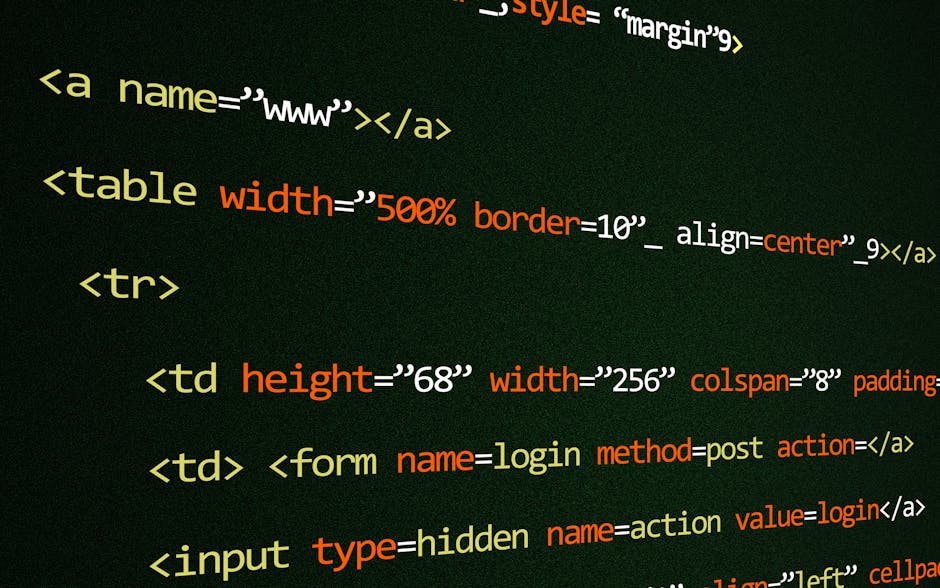
Photo by Pixabay on Pexels
HTML provides the structure and content of a web page. It uses tags like <p> for a paragraph or <img> for an image. Without HTML, there's nothing to style!
CSS (Cascading Style Sheets)
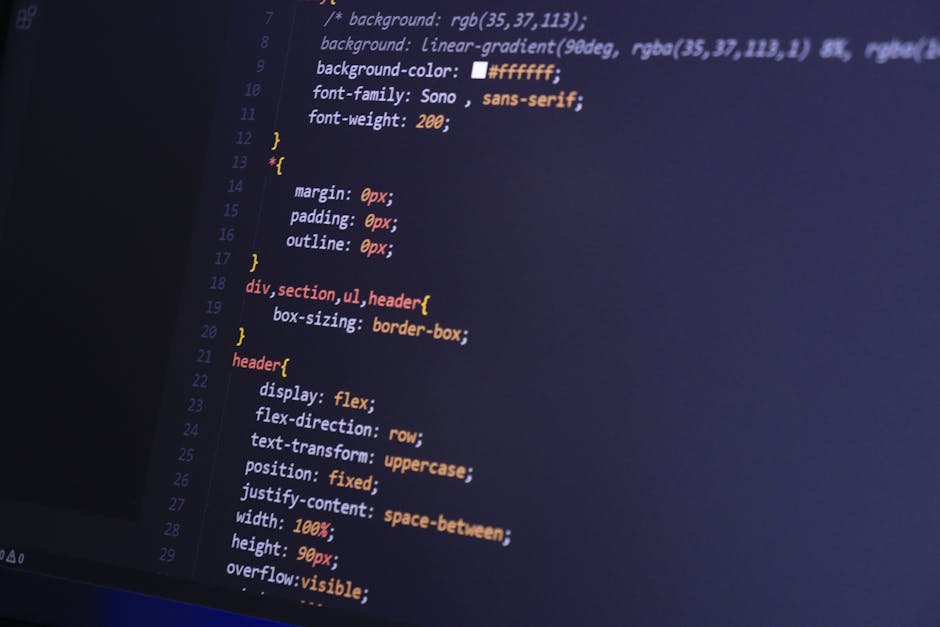
Photo by Bibek ghosh on Pexels
CSS is what makes web pages look good. It controls the presentation of HTML elements. Think of it as the artistic director for your website.
Here's how CSS works at a basic level: you select an HTML element and then apply styles to it using property: value; pairs.
/* This is a CSS comment! */

/* Selects all paragraph elements */
p {
  color: blue; /* Sets the text color to blue */
  font-size: 16px; /* Sets the font size to 16 pixels */
}

/* Selects an element with the ID "main-heading" */
#main-heading {
  text-align: center; /* Centers the text */
  background-color: lightgray; /* Adds a light gray background */
}

/* Selects all elements with the class "card" */
.card {
  border: 1px solid #ccc; /* Adds a light gray border */
  padding: 15px; /* Adds space inside the element */
  margin: 10px; /* Adds space outside the element */
}
Key CSS Concepts

Photo by Miguel Á. Padriñán on Pexels
- Selectors: These are patterns used to select the HTML elements you want to style.
- Element Selector:
p,h1,div(selects all elements of that type). - Class Selector:
.my-class(selects all elements with that specific class attribute). You can apply the same class to multiple elements. - ID Selector:
#my-id(selects a single element with that specific ID attribute). IDs should be unique on a page. - Attribute Selector:
a[target="_blank"](selects<a>tags withtarget="_blank").
- Element Selector:
- Properties: These are the specific style characteristics you want to change (e.g.,
color,font-size,background-color,margin,padding). - Values: These are what you set the properties to (e.g.,
blue,16px,lightgray,10px).
How CSS is Applied (The "Cascade")
CSS stands for "Cascading Style Sheets" because styles can come from multiple sources and "cascade" down, with some rules having more importance than others.
Here's a simple hierarchy of how CSS is applied (from least to most specific, generally):
graph TD
    A["Browser Default Styles (User Agent Styles)"] --> B["External Stylesheets (Linked files)"]
    B --> C["Internal Styles (In <style> tags)"]
    C --> D["Inline Styles (Style attribute on HTML element)"]
    D --> E["!important (Overrides almost everything)"]
This means:
1. Your browser has default styles for everything.
2. Then, styles from an external .css file you link are applied.
3. Then, styles you write directly in a <style> tag in your HTML file.
4. Then, styles you put directly on an HTML element using the style attribute (like <p style="color: red;">).
5. Finally, the !important keyword will override almost anything else (use sparingly!).
More specific selectors (like an ID) also override less specific ones (like an element selector).
3. Worked Example
Let's say you have this simple HTML:
<!DOCTYPE html>
<html lang="en">
<head>
    <meta charset="UTF-8">
    <meta name="viewport" content="width=device-width, initial-scale=1.0">
    <title>My First Styled Page</title>
    <link rel="stylesheet" href="styles.css"> <!-- This links our CSS file -->
</head>
<body>
    <h1 id="page-title">Welcome to My Awesome Page!</h1>
    <p class="intro-text">This is an introductory paragraph about web development.</p>
    <p>Here's another paragraph, but it won't be styled the same way.</p>
    <div class="card">
        <h2>Card Title</h2>
        <p class="intro-text">This is content inside a card.</p>
    </div>
</body>
</html>
And in a file named styles.css (in the same folder as your HTML), you have this CSS:
body {
    font-family: Arial, sans-serif;
    margin: 20px;
    background-color: #f4f4f4;
}

#page-title {
    color: #333;
    text-align: center;
    border-bottom: 2px solid #333;
    padding-bottom: 10px;
}

.intro-text {
    color: green;
    font-weight: bold;
}

p {
    line-height: 1.6;
}

.card {
    background-color: white;
    border: 1px solid #ddd;
    border-radius: 8px;
    padding: 20px;
    margin-top: 25px;
    box-shadow: 0 2px 4px rgba(0,0,0,0.1);
}
When you open the HTML file in a browser, you'll see:
* The entire page (body) has an Arial font, a light grey background, and some margin.
* The <h1> with id="page-title" is centered, dark grey, and has a bottom border.
* Both paragraphs with class="intro-text" (the first paragraph and the one inside the card) are green and bold.
* All paragraphs (including the second one) have a line height of 1.6. Notice how the color and font-weight from .intro-text override the generic p styles for those specific paragraphs because class selectors are more specific than element selectors for those properties.
* The div with class="card" has a white background, border, rounded corners, padding, margin, and a subtle shadow.
4. Key Takeaways
- The web landscape for TLE/CSS focuses on creating web pages using HTML for structure and CSS for styling.
- CSS uses selectors to target specific HTML elements and applies
property: value;pairs to style them. - Common selectors include element names (
p), classes (.my-class), and IDs (#my-id). - CSS follows a "cascade" where more specific styles or styles declared later generally override earlier or less specific ones.
- External stylesheets (
.cssfiles) are the best way to organize your styles for easier maintenance.
Common mistakes to avoid:
- Forgetting to link your CSS file to your HTML with <link rel="stylesheet" href="styles.css">.
- Typos in property names or values (e.g., colour instead of color).
- Using an ID selector (#) when you intend to style multiple elements (use a class selector . instead).
- Overusing !important, which makes your CSS harder to maintain and debug.
- Not saving both your HTML and CSS files before refreshing the browser to see changes.
5. Now Try It
Create two files: index.html and style.css. In index.html, add a <h1> with the ID main-title and two paragraphs, one with the class highlight and another without any specific class. In style.css, make the main-title purple and centered, make the highlight paragraph text yellow on a black background, and give all paragraphs a default font size of 18px. See if you can get the highlight paragraph to be yellow, black, AND 18px.
What success looks like: When you open index.html in your browser, the main title will be purple and centered. The paragraph with the highlight class will have yellow text on a black background and be 18px, while the other paragraph will just be 18px (with default text color).
Frequently asked about Introduction to the Tech Landscape and CSS Fundamentals
Get the full Tle/Css curriculum
Clone the complete plan to your dashboard for unlimited AI-generated notes, practice quizzes, and a personalised revision schedule.
Create Free Account