System Access and Setup
From the quiz curriculum
TL;DR
Setting up your computer system involves knowing how to access it, managing user accounts and permissions, and configuring your environment. You'll learn the basics of logging in, understanding what you can and can't do, and personalizing your workspace. This knowledge is crucial for productive and secure use of any operating system.
1. The Mental Model
Think of your computer as a house. You need a key (password) to get in, and once inside, you have different rooms (accounts) with various levels of access (permissions) to appliances (programs) and storage (files). Setting up means deciding who gets which key and what they can do.
2. The Core Material
When you interact with a computer system, you're usually doing so as a user. Each user has an account with specific permissions that dictate what they can access or modify.
Logging In and User Accounts
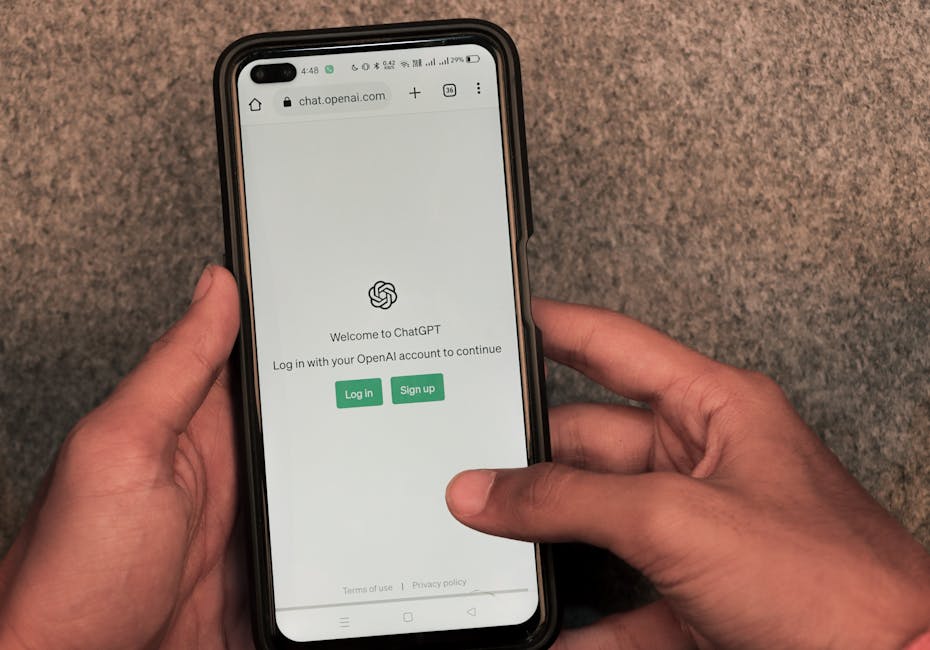
Photo by Sanket Mishra on Pexels
To use a system, you typically need to log in. This usually involves providing a username and a password. This process authenticates you, meaning the system verifies you are who you say you are.
Every operating system (like Windows, macOS, or Linux) manages user accounts differently, but the core idea is the same:
* Administrator/Root User: This account has full control over the system. It can install software, change system settings, manage other user accounts, and access all files. Use this power carefully!
* Standard User: This account has limited permissions. It can run programs, create and modify its own files, but usually can't install system-wide software or change critical system settings. This is often the safest account for everyday use.
* Guest User: (Less common now) A temporary account with very restricted access, often used for someone who needs to quickly use the computer without leaving any permanent changes or accessing your personal data.
When you first set up a new computer, you'll usually create an administrator account. It's often recommended to create a separate standard user account for your daily tasks to enhance security.
graph TD
    Start["Start Computer"] --> PowerOn["System Powers On"]
    PowerOn --> OSLoad["Operating System Loads"]
    OSLoad --> LoginScreen["Login Screen Appears"]
    LoginScreen --> UserInput["Enter Username & Password"]
    UserInput --> Authenticate{{"Authenticate Credentials?"}}
    Authenticate -->|No| LoginScreen
    Authenticate -->|Yes| CheckPermissions{"Check User Permissions"}
    CheckPermissions --> DesktopAccess["Grant Desktop Access (Standard User)"]
    CheckPermissions --> AdminAccess["Grant Admin Access (Administrator User)"]
    DesktopAccess --> End["User Session Active"]
    AdminAccess --> End
Understanding Permissions

Photo by Pixabay on Pexels
Permissions define what a user or a program can do with a file or a folder. Common permissions include:
* Read: You can view the contents of a file or list the contents of a folder.
* Write: You can modify or delete a file, or create/delete files within a folder.
* Execute: You can run a file (if it's a program) or navigate into a folder.
These permissions are vital for security and system stability. Without them, any user could accidentally (or intentionally) delete critical system files, making the computer unusable.
Environment Configuration
Photo by Brett Sayles on Pexels
Once you're logged in, your "environment" refers to how your system is set up for you. This includes:
* Desktop Background and Theme: How your desktop looks.
* Program Settings: Preferences for your applications.
* System Settings: Sound, display, network settings, etc.
* Environment Variables: Special values that affect how programs run. For example, the PATH variable tells your system where to look for executable programs when you type a command.
You can usually customize many of these settings through your operating system's "Settings" or "Control Panel" application.
3. Worked Example
Let's say you've just bought a new Windows laptop.
- Initial Setup: The first time you turn it on, it walks you through creating an initial user account. You decide to name it "MyAdmin" and give it a strong password. This account automatically becomes an Administrator.
- Creating a Standard User: For daily use, you want more security. You go to
Settings > Accounts > Family & other usersand click "Add someone else to this PC". You create a new account called "MyDailyUser" with a password. By default, this is a Standard User. - Logging In: Each morning, you turn on your laptop. At the login screen, you choose "MyDailyUser" and enter its password. You're now logged in as a standard user.
- Permission Check: You try to install a new game. When the installer runs, it asks for administrator credentials (a pop-up will appear). You then type in the username and password for "MyAdmin". The system temporarily grants the installer administrator rights for that action, but you remain logged in as "MyDailyUser".
- Environment: You change your desktop background, adjust your display brightness, and set up your email client. These changes are saved specifically for "MyDailyUser". If "MyAdmin" logged in, they would have their own separate background and email setup.
4. Key Takeaways
- Always use strong, unique passwords for your user accounts.
- Understand the difference between administrator and standard user accounts; use a standard account for daily tasks for better security.
- Permissions control what you can do with files and folders, preventing accidental system damage.
- Your user account defines your personalized system environment and settings.
- Logging in verifies your identity and grants you access based on your account's permissions.
- You can usually create multiple user accounts on a single computer for different people or purposes.
Common mistakes to avoid:
- Using an administrator account for all your daily computing activities, which exposes your system to more risk.
- Sharing your password with others, compromising your account security.
- Not understanding why a program is asking for administrator privileges (User Account Control prompts).
- Forgetting your password and not having a recovery method set up.
5. Now Try It
On your own computer (Windows, macOS, or Linux), try creating a new standard user account. Name it "TestUser" with a simple password you'll remember (e.g., "password123" for this exercise, but never in real life!). Log out of your current account and log in as "TestUser". Try to change the system date and time, then try to uninstall a program. Note how the system responds and what permissions are required. Then, log out of "TestUser" and delete it using your primary administrator account. What to do: Create, use, and delete a standard user account. What success looks like: You've successfully navigated the account creation, login, and deletion process, and observed permission differences.
Frequently asked about System Access and Setup
Study this next
Get the full quiz curriculum
Clone the complete plan to your dashboard for unlimited AI-generated notes, practice quizzes, and a personalised revision schedule.
Save this course free