Introduction to Computer Literacy and Course Expectations
From the quiz curriculum
TL;DR
This course will teach you the fundamental skills to confidently use computers and understand how they work. We'll cover everything from basic computer parts to navigating the internet safely. You'll learn essential digital skills that are useful in everyday life and future studies.
1. The Mental Model
Think of a computer as a really smart tool. Like any tool, knowing how it works and how to use it properly makes you much more effective. This course will help you understand that tool from the inside out, so you're not just pushing buttons but truly in control.
2. The Core Material
You might use computers every day, but do you really know what's going on inside? This course isn't just about using software; it's about understanding the foundational concepts that make computers tick. We'll start with the basics, moving from hardware to software, and then to how computers connect and communicate.
2.1 What is Computer Literacy?

Photo by Tuấn Nguyễn Văn on Pexels
Computer literacy means you have the knowledge and ability to use computers and related technology efficiently. It's more than just knowing how to browse Facebook; it's understanding file systems, cybersecurity basics, and how to effectively use common applications for work or school. It’s about being comfortable and productive in a digital world.
2.2 Course Structure and Topics
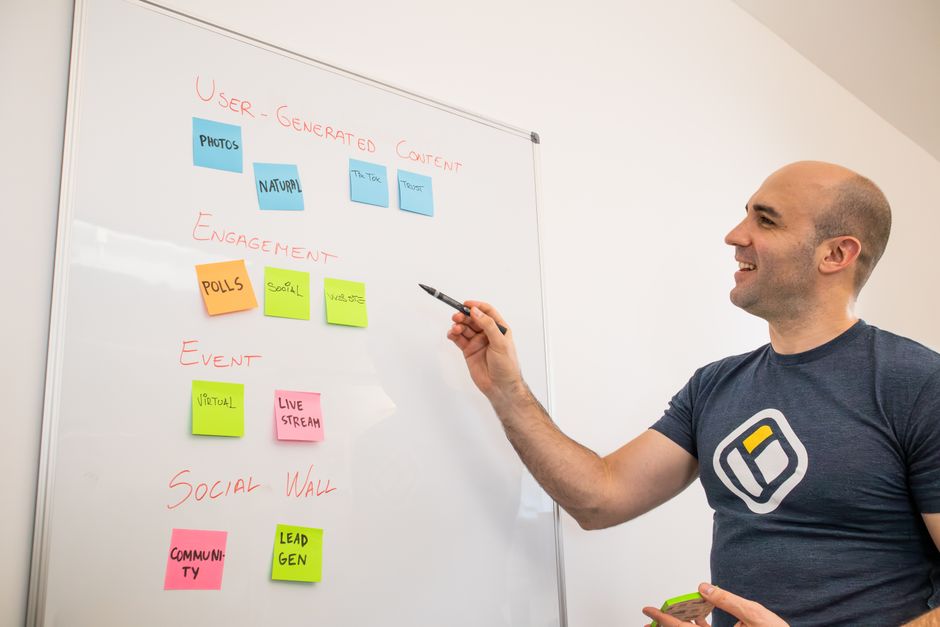
Photo by Walls.io on Pexels
This course is broken down into several key modules, building your knowledge step-by-step. We'll cover:
- Computer Hardware Basics: What are the essential parts of a computer and what do they do? (CPU, Memory, Storage, Input/Output).
- Operating Systems: What is an OS and how does it manage your computer? (Windows, macOS, Linux concepts).
- Software Applications: Understanding different types of software and how to use common ones (word processors, spreadsheets, web browsers).
- Networking and the Internet: How do computers connect? What's the internet and how does it work?
- Digital Communication: Email, video conferencing, and online etiquette.
- Cybersecurity Basics: Protecting yourself and your data online.
- Troubleshooting Common Issues: Simple fixes for everyday computer problems.
This isn't a passive course; it’s designed for you to actively engage with the material and practice your skills.
2.3 Course Expectations

Photo by Andy Barbour on Pexels
To succeed in this course, you'll need to participate actively and be prepared to complete hands-on assignments.
graph TD
    A["Start Course: Module 1"] --> B["Review Module Materials"]
    B --> C{"Understand Concepts?"}
    C -- Yes --> D["Complete Practical Exercises"]
    C -- No --> B
    D --> E{"Assignment Due?"}
    E -- Yes --> F["Submit Assignment"]
    E -- No --> G["Advance to Next Module"]
    F --> G
    G --> H{"All Modules Completed?"}
    H -- Yes --> I["Final Project/Exam"]
    H -- No --> A
    I --> J["Course Completion"]
- Active Participation: Ask questions, join discussions, and try out the examples.
- Time Commitment: Expect to spend a few hours each week reviewing materials and completing tasks.
- Completing Assignments: Each module will have practical exercises or small projects to reinforce your learning. These are crucial for building your skills.
- Problem-Solving Mindset: Don't be afraid to try things out and troubleshoot. Making mistakes is part of learning.
- Respectful Communication: When interacting with me or others in the course, always be clear and respectful.
3. Worked Example
Let's say you're tasked with organizing your photos on your computer. Without computer literacy, you might just dump them all into one folder.
Problem: You have hundreds of photos from different years and events, all mixed up in your "My Pictures" folder. You want to find photos from your 2023 vacation quickly.
Solution using Computer Literacy:
- Understand File Systems: You know that folders (directories) help organize files.
- Create a Hierarchy: Instead of one big folder, you create a main "Photos" folder. Inside that, you create folders for each year (e.g., "2023", "2024").
- Sub-categorize: Within the "2023" folder, you create a new folder called "Vacation_Hawaii".
- Move Files: You then select all your Hawaii vacation photos and move them into the "Vacation_Hawaii" folder.
- Rename for Clarity: If you have files like "IMG_0001.jpg", you might rename key ones to "Hawaii_Beach_Sunset.jpg" for easier searching later.
This structured approach, leveraging your understanding of file and folder management, makes finding your photos much easier than just scrolling through hundreds of unorganized files.
4. Key Takeaways
- Computer literacy is essential for confidently navigating our digital world, not just for basic tasks.
- You'll learn about both computer hardware (physical parts) and software (programs that run on them).
- The course emphasizes active learning through hands-on exercises and practical assignments.
- Understanding how to organize digital files effectively can save you time and frustration.
- Cybersecurity basics will be covered to help you protect your information online.
Avoid these common mistakes:
- Don't just skim the material; actively try out the concepts on your computer.
- Don't hesitate to ask questions if something isn't clear; that's what I'm here for.
- Don't wait until the last minute to start assignments; they often require hands-on practice.
- Don't be afraid to experiment a little; sometimes the best way to learn is by trying things out (safely).
5. Now Try It
Spend 15 minutes exploring your computer's file system. Open "File Explorer" (Windows) or "Finder" (macOS). Navigate through your "Documents" or "Pictures" folders. Can you create a new folder, rename it, and then create a sub-folder inside it? Try moving an existing document or picture from one folder to another.
What success looks like: You can confidently create, rename, and move folders and files within your computer's directory structure. You understand the difference between moving a file and copying a file.
Frequently asked about Introduction to Computer Literacy and Course Expectations
Study this next
Get the full quiz curriculum
Clone the complete plan to your dashboard for unlimited AI-generated notes, practice quizzes, and a personalised revision schedule.
Save this course free