Introduction to Version Control & Git Fundamentals
From the Make notes on docker an GitHub curriculum
TL;DR
You'll understand why version control exists, how Git tracks changes using snapshots rather than diffs, and the core workflow: working directory → staging area → repository. You'll run real commands to initialize a repo, commit changes, inspect history, and branch safely. By the end, you'll know exactly when to use git add, git commit, git branch, and git merge without guessing.
1. The Mental Model
Git is a time machine for your code — every commit is a saved checkpoint you can return to. Unlike copying files into folders named final_v2_REAL, Git stores complete snapshots and lets you jump between them instantly. Three zones matter: your working directory (what you're editing), the staging area (what you're about to save), and the repository (what's permanently saved). Git doesn't track files — it tracks the history of decisions you made about those files.
2. The Core Material
2.1 Why Version Control Exists
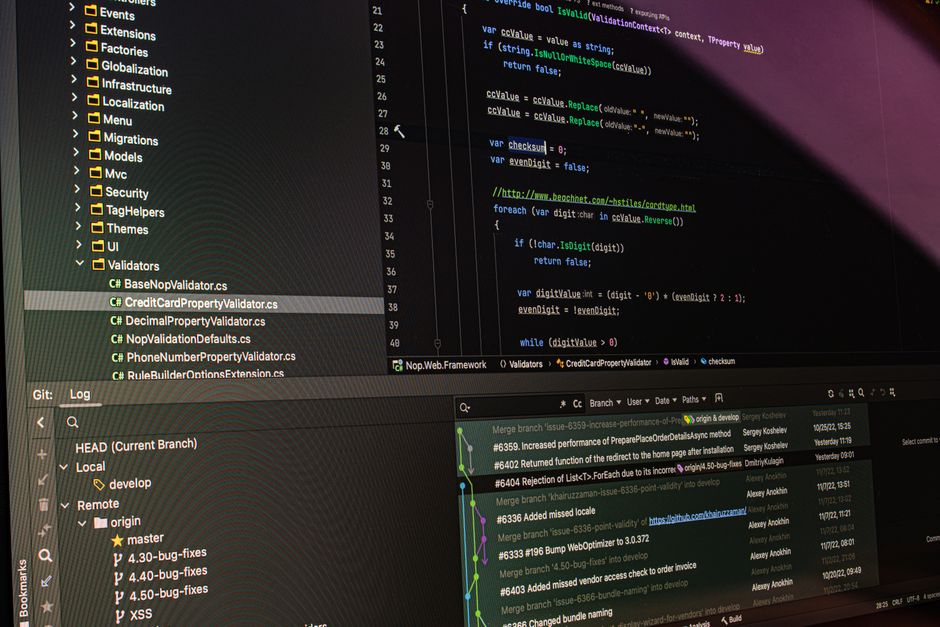
Photo by Daniil Komov on Pexels
Before Git, developers emailed zip files or kept folders like project_final, project_final2, project_final_FIXED. This breaks the moment two people edit the same file, or you need to know why a line changed six months ago.
Version control solves three problems:
1. History — every change is recorded with who, what, when, and why (via commit messages).
2. Collaboration — multiple people can work on the same codebase without overwriting each other.
2. Safety — you can experiment freely because you can always roll back.
Git specifically is a distributed version control system (DVCS). Unlike older tools like SVN (centralized — one master copy on a server), every Git user has a full copy of the entire project history on their own machine. This means you can commit, branch, and view history completely offline.
2.2 The Three Trees: Working Directory, Staging Area, Repository
Photo by Thomas P on Pexels
This is the single most important mental model in Git. Every file in your project lives in one of three states:
- Working directory — the actual files you see and edit in your folder.
- Staging area (the "index") — a holding zone where you list exactly which changes you want in your next snapshot.
- Repository (
.gitfolder) — the permanent, compressed history of all committed snapshots.
flowchart LR
    A["Working Directory\n(edit files)"] -->|git add| B["Staging Area\n(index)"]
    B -->|git commit| C["Repository\n(.git history)"]
    C -->|git checkout / restore| A
Why does staging exist at all? Because it lets you build a commit deliberately. Say you edited three files but only two relate to the bug fix you're committing right now — you stage just those two, leaving the third for a separate commit later. This keeps your history clean and meaningful, which matters enormously once a team is reading your commit log to understand why something changed.
Let's see this in practice:
# Initialize a new repository
mkdir my-project && cd my-project
git init

# Check status — see what's tracked, untracked, staged
git status

# Create a file
echo "print('hello world')" > app.py

# git status now shows app.py as "untracked"
git status

# Stage it — move it to the staging area
git add app.py

# git status now shows it as "staged" (ready to commit)
git status

# Commit — permanently save this snapshot
git commit -m "Add initial hello world script"
Every git commit creates a snapshot pointed to by a unique SHA-1 hash (a 40-character ID like a3f5c9d...). Git doesn't store "file changed from X to Y" like a diff tool — it stores the entire state of every tracked file at that moment, but cleverly, only new/changed files get stored fully; unchanged files just link back to the previous snapshot. This is why Git is fast even on huge histories.
2.3 Branching, Merging, and Inspecting History
Photo by Viliam Kudelka on Pexels
A branch is just a movable pointer to a commit. The default branch is usually called main (older repos use master). When you create a new branch, you're not copying files — you're creating a lightweight pointer that lets you diverge from the main line of development without touching it.
# Create and switch to a new branch
git branch feature-login        # create branch
git checkout feature-login      # switch to it
# OR do both in one command (modern Git):
git switch -c feature-login

# Make changes, stage, commit as normal
echo "def login(): pass" > login.py
git add login.py
git commit -m "Add login stub"

# Switch back to main
git switch main

# Merge feature-login into main
git merge feature-login
When you merge, Git looks at the common ancestor commit of both branches and combines the changes. If the same lines were edited differently on both branches, you get a merge conflict — Git pauses and asks you to manually resolve it by editing the conflicted file (it marks conflicts with <<<<<<<, =======, >>>>>>> markers), then git add the resolved file and git commit to finish the merge.
flowchart TD
    A["main: commit A"] --> B["main: commit B"]
    B --> C["feature-login: commit C"]
    B --> D["main: commit D"]
    C --> E["Merge commit E"]
    D --> E
To inspect history, use:
git log                 # full commit history
git log --oneline       # compact, one line per commit
git log --graph --all   # visual branch structure
git diff                # see unstaged changes
git diff --staged       # see staged changes not yet committed
Each of these answers a different question: git status tells you where you are right now, git log tells you how you got here, and git diff tells you exactly what changed, line by line.
3. Worked Example
Let's build a tiny project from scratch and watch the three-zone model in action.
mkdir todo-app && cd todo-app
git init
# Output: Initialized empty Git repository in .../todo-app/.git/

echo "# Todo App" > README.md
git status
# Output: Untracked files: README.md

git add README.md
git status
# Output: Changes to be committed: new file: README.md

git commit -m "Initial commit: add README"
# Output: [main (root-commit) a1b2c3d] Initial commit: add README

# Now add a feature on a branch
git switch -c add-task-list
echo "- Buy milk" > tasks.txt
git add tasks.txt
git commit -m "Add first task to task list"

# Check the history graph
git log --oneline --graph --all
# Output:
# * f4e5d6c (HEAD -> add-task-list) Add first task to task list
# * a1b2c3d (main) Initial commit: add README

# Merge the feature back into main
git switch main
git merge add-task-list
# Output: Fast-forward merge — no conflict, main now includes tasks.txt
Notice the word "Fast-forward." Since no new commits were made on main after we branched off, Git just moved the main pointer forward to match add-task-list — no merge commit needed. If main had moved forward too (say, someone else committed a .gitignore), Git would create a real merge commit joining both histories, as shown in the diagram in Section 2.3.
4. Production Pitfalls & Best Practices
4.1 Real-World Best Practices

Photo by Yoga Vidya Mandiram on Pexels
- Commit often, in small logical chunks. One commit = one idea (e.g., "fix off-by-one in pagination"), not "end of day changes."
- Write meaningful commit messages. Use imperative mood: "Add user validation," not "added stuff" or "fix."
- Use a
.gitignorefile from the start to exclude build artifacts,node_modules/,.envfiles, and OS junk (.DS_Store) before they ever get committed. - Branch for every feature or fix. Never commit directly to
mainin a team setting — usefeature/,fix/, orbugfix/naming prefixes. - Pull before you push. Always
git pull(orfetch+merge) before pushing to avoid unnecessary conflicts. - Review
git diff --stagedbefore committing. Catches accidental debug prints or secrets before they're permanent. - Tag releases. Use
git tag v1.0.0to mark stable points you can always return to.
4.2 Common Bugs & Anti-Patterns
Mistake 1: Committing secrets or large binaries.
# BAD — API key gets permanently baked into history
echo "API_KEY=sk-12345" > .env
git add .env
git commit -m "Add config"
# FIXED — ignore it before it's ever tracked
echo ".env" >> .gitignore
git rm --cached .env   # if already tracked, remove from tracking
git commit -m "Remove .env from tracking, add to .gitignore"
Note: if the secret was already pushed, it still exists in history — you'd need git filter-repo or BFG Repo-Cleaner to purge it, plus you should rotate the key.
Mistake 2: Committing with a vague message.
# BAD
git commit -m "fix"
# FIXED
git commit -m "Fix null pointer when user has no saved address"
Mistake 3: Force-pushing over shared history.
# BAD — overwrites teammates' commits on a shared branch
git push --force origin main
# FIXED — use the safer flag that checks you're not wiping others' work
git push --force-with-lease origin main
Mistake 4: Forgetting to stage a file before committing.
# BAD — commit silently excludes the new file you forgot to add
git commit -m "Add new utils module"
# (utils.py never got staged — commit only has unrelated changes)
# FIXED — always check status first
git status
git add utils.py
git commit -m "Add new utils module"
4.3 When to Use What (Decision Matrix)
| Situation | Command / Approach |
|---|---|
| Starting a brand-new project | git init |
| Copying an existing remote project | git clone <url> |
| See what's changed but not yet staged | git diff |
| See what's staged but not committed | git diff --staged |
| Undo changes in a file before staging | git restore <file> |
| Unstage a file (keep edits) | git restore --staged <file> |
| Start new independent work | git switch -c <branch-name> |
| Combine two branches' history | git merge <branch-name> |
| View compact project history | git log --oneline --graph --all |
5. Now Try It
Build a tiny repo right now, no extra tools needed. In a terminal:
- Create a folder
git-practice, rungit initinside it. - Create a file
notes.txtwith one line of text, thengit addandgit commitit with a clear message. - Create a new branch called
experiment, editnotes.txtby adding a second line, and commit that change. - Switch back to
main, and onmain, add a different third line tonotes.txtand commit it. - Merge
experimentintomainand resolve the conflict Git shows you by keeping both lines.
Success looks like: you can run git log --oneline --graph --all and see two diverging branches joined by a merge commit, and notes.txt contains all three lines you wrote across both branches.
Frequently asked about Introduction to Version Control & Git Fundamentals
Study this next
Get the full Make notes on docker an GitHub curriculum
Clone the complete plan to your dashboard for unlimited AI-generated notes, practice quizzes, and a personalised revision schedule.
Save this course free