Networking and Internet Technologies
From the Computer Application Technology curriculum
TL;DR
Networking connects computers to share resources and communicate, while the Internet is a global network of networks that uses standardized protocols. Understanding how data travels from your device to a website involves knowing about IP addresses, DNS, and various network devices. This knowledge helps you troubleshoot common connection issues and appreciate the infrastructure behind modern communication.
1. The Mental Model
Think of networking as different roads and highways connecting cities (computers), allowing people (data) to travel between them. The Internet is like the ultimate, massive global highway system that connects all these smaller road networks together, letting you reach almost any city in the world.
2. The Core Material
At its heart, networking is simply connecting two or more computing devices so they can share data, resources (like printers), and communicate. When you connect your phone to Wi-Fi or plug your computer into a router, you're engaging in networking.
Types of Networks

Photo by Christina Morillo on Pexels
Networks are often categorized by their size and scope:
* LAN (Local Area Network): Covers a small, limited geographical area, like your home, school computer lab, or office building. Devices in a LAN are usually connected by Ethernet cables or Wi-Fi.
* WAN (Wide Area Network): Spans a large geographical area, often connecting multiple LANs over long distances. The Internet is the most famous example of a WAN.
* WLAN (Wireless Local Area Network): A LAN that uses wireless communication (Wi-Fi) instead of physical cables.
* PAN (Personal Area Network): Connects devices within a small personal space, like your phone to Bluetooth headphones.
Network Devices

Photo by Brett Jordan on Pexels
To make a network work, you need specific hardware:
* Router: Directs data traffic between different networks (e.g., between your home LAN and the Internet). It's like a traffic cop for data.
* Switch: Connects multiple devices within a single LAN, allowing them to communicate. It's smarter than a hub, sending data only to the intended recipient.
* Modem: Connects your home network to your Internet Service Provider (ISP). It converts signals from your ISP (like cable or fiber) into a format your router can understand, and vice-versa.
* Wireless Access Point (WAP): Allows wireless devices to connect to a wired network. Often built into routers.
* Network Interface Card (NIC): A piece of hardware (often built into your computer) that allows your device to connect to a network, either wired (Ethernet port) or wireless (Wi-Fi adapter).
The Internet
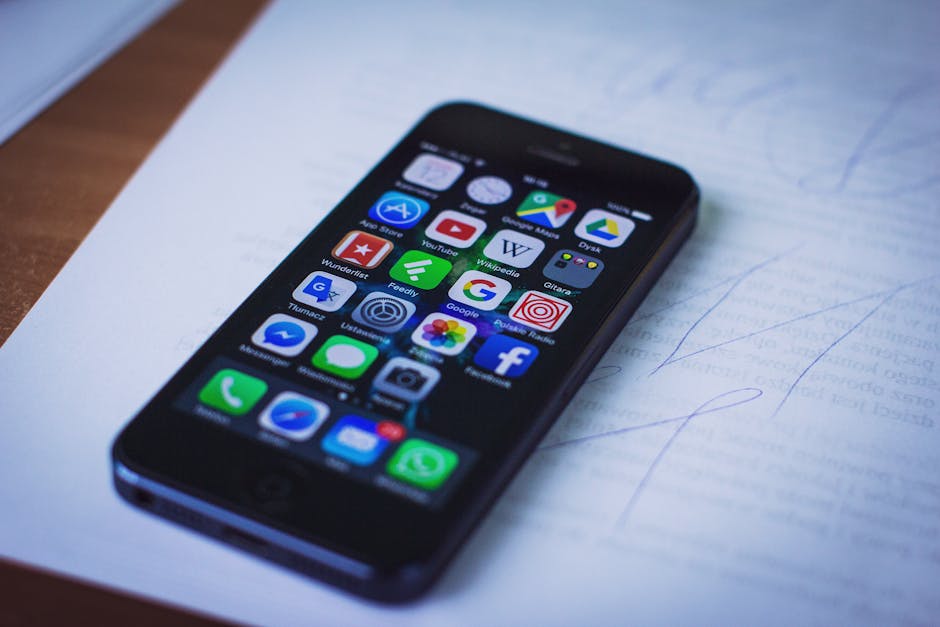
Photo by freestocks.org on Pexels
The Internet is a massive, worldwide public network of computer networks. It uses a set of standardized rules called protocols to ensure all connected devices can communicate.
Key Internet Concepts:
- IP Address (Internet Protocol Address): A unique numerical label assigned to every device connected to a computer network that uses the Internet Protocol for communication. Think of it as your device's street address on the Internet.
- IPv4: The older, more common type (e.g.,
192.168.1.1). - IPv6: The newer type with a much larger address space (e.g.,
2001:0db8:85a3:0000:0000:8a2e:0370:7334).
- IPv4: The older, more common type (e.g.,
- DNS (Domain Name System): Translates human-readable website names (like
www.google.com) into their corresponding IP addresses (like142.250.186.132). It's like a phonebook for the Internet. - Protocols: Sets of rules that govern how data is transmitted over a network.
- HTTP (Hypertext Transfer Protocol): Used for transferring web pages.
- HTTPS (Hypertext Transfer Protocol Secure): Secure version of HTTP, encrypts data.
- TCP/IP (Transmission Control Protocol/Internet Protocol): The fundamental suite of protocols that governs how data is broken into packets, sent, and reassembled across the Internet.
- FTP (File Transfer Protocol): Used for transferring files between computers.
Here's how you access a website:
graph TD
    A["You type URL (e.g., www.example.com)"] --> B{"Browser asks DNS Server for IP"};
    B --> C{"DNS Server (like a phonebook) sends back IP (e.g., 93.184.216.34)"};
    C --> D{"Browser sends request to IP (web server)"};
    D --> E{"Web server receives request"};
    E --> F{"Web server sends website data back"};
    F --> G["Your browser displays the webpage"];
3. Worked Example
Let's trace what happens when you open your browser and type www.mycollege.edu to access your college portal.
- You type the URL: Your web browser (e.g., Chrome, Firefox) sees
www.mycollege.edu. - DNS Lookup: Your computer doesn't know the IP address for
www.mycollege.edu. It sends a request to a DNS server (often provided by your ISP). - IP Address Retrieved: The DNS server, acting like a giant phonebook, looks up
www.mycollege.eduand replies with its IP address, for example,172.217.10.14. - Packet Creation: Your computer now knows the destination IP. It packages your request for the college portal's homepage into small units called packets. Each packet includes the destination IP, your computer's IP, and part of the request data.
- Journey through your LAN: These packets leave your computer, go through your NIC, then through your switch (if you have one, or directly to your router).
- Through the Router and Modem: Your router receives the packets and, seeing that the destination IP (
172.217.10.14) is outside your home network, forwards them to your modem. The modem then converts the signal and sends it out over your ISP's network. - Across the Internet (WAN): The packets travel across the Internet, hopping from router to router, until they reach the web server hosting
www.mycollege.edu. - Server Response: The college's web server receives your request, processes it, and sends the webpage data back to your computer, again in packets.
- Page Displayed: These response packets travel back through the Internet, your modem, router, and NIC. Your browser reassembles them, and you see the
www.mycollege.eduhomepage!
4. Key Takeaways
- Networking is about connecting devices to share resources and communicate.
- The Internet is a massive, global network connecting countless smaller networks.
- Routers direct traffic, switches connect devices in a local network, and modems link you to your ISP.
- IP addresses are unique identifiers for devices on a network, while DNS translates human-friendly domain names into these IP addresses.
- Protocols like TCP/IP, HTTP, and HTTPS are essential rules for data transfer and secure communication on the Internet.
- Data travels in small units called packets, which are reassembled at their destination.
Common mistakes you should avoid:
- Confusing a router (directs traffic between networks) with a switch (connects devices within one network).
- Thinking that your modem provides Wi-Fi; it usually doesn't, that's your router's job.
- Forgetting that DNS is what translates website.com into an IP address; without it, you'd have to remember complex numbers.
- Ignoring the difference between HTTP (unsecure) and HTTPS (secure) when browsing or providing personal information.
5. Now Try It
Open the Command Prompt (Windows) or Terminal (macOS/Linux) on your computer.
- Find your IP address: Type
ipconfig(Windows) orifconfig(macOS/Linux) and look for your device's IPv4 address and your default gateway (your router's IP). - Test a website connection and find its IP: Type
ping google.com. Note the IP address it returns and the time it takes for data to travel to Google's server and back. - Trace the route: Type
tracert google.com(Windows) ortraceroute google.com(macOS/Linux) and observe the different "hops" (routers) your data travels through to reach Google.
What success looks like: You'll be able to identify your computer's local IP, see the IP address of a website like Google, and visualize the path (the different routers) your data takes to reach that website. This helps solidify your understanding of how data moves across networks.
Frequently asked about Networking and Internet Technologies
More from Computer Application Technology
Get the full Computer Application Technology curriculum
Clone the complete plan to your dashboard for unlimited AI-generated notes, practice quizzes, and a personalised revision schedule.
Save this course free