Introduction to HTML Forms and Input Elements
From the https://youtu.be/fXxzpkM5Zzo?si=7-WHmhWOKhv110Ow curriculum
TL;DR
HTML forms let you gather information from users through various input elements like text fields, checkboxes, and buttons. These elements are structured within a <form> tag, which also defines how the data is sent (e.g., to a server). Understanding different input types and their attributes is crucial for building interactive web pages.
1. The Mental Model
Think of an HTML form as a digital questionnaire. You provide spaces for users to write, select options, or click buttons, and then you collect all their answers to use or send somewhere else.
2. The Core Material
HTML forms are how you get input from users on a webpage. At its simplest, a form is defined by the <form> tag. Inside this tag, you place various input elements that capture different kinds of data.
The <form> tag itself has a couple of important attributes:
* action: Specifies where to send the form data when it's submitted (usually a URL on your server).
* method: Defines the HTTP method to use when sending the data. Common methods are GET (data appended to the URL) and POST (data sent in the body of the request, more secure for sensitive info).
Basic Input Elements

Photo by Sinan KRIYA on Pexels
The most common and versatile element is <input>. Its behavior changes drastically based on its type attribute.
Here are some essential type values:
text: For single-line text input.
html <label for="username">Username:</label> <input type="text" id="username" name="username">password: Liketext, but masks the input characters.
html <label for="password">Password:</label> <input type="password" id="password" name="password">submit: Creates a button that submits the form.
html <input type="submit" value="Submit Form">checkbox: Allows users to select zero or more options from a list.
html <input type="checkbox" id="newsletter" name="subscribe" value="yes"> <label for="newsletter">Sign me up for the newsletter</label>radio: Allows users to select exactly one option from a group. For a group, all radio buttons must have the samenameattribute.
html <input type="radio" id="male" name="gender" value="male"> <label for="male">Male</label><br> <input type="radio" id="female" name="gender" value="female"> <label for="female">Female</label>email: For email addresses. Browsers often provide basic validation.
html <label for="user_email">Email:</label> <input type="email" id="user_email" name="user_email">number: For numerical input. You can addminandmaxattributes.
html <label for="quantity">Quantity:</label> <input type="number" id="quantity" name="quantity" min="1" max="10">date: For date selection using a date picker.
html
    <label for="dob">Date of Birth:</label>
    <input type="date" id="dob" name="dob">
Other Important Form Elements

Photo by RDNE Stock project on Pexels
While <input> is central, other tags are crucial for rich forms:
<textarea>: For multi-line text input (e.g., comments). Hasrowsandcolsattributes.
html <label for="message">Your Message:</label> <textarea id="message" name="user_message" rows="5" cols="30"></textarea><select>and<option>: For dropdown lists.
html <label for="country">Country:</label> <select id="country" name="user_country"> <option value="usa">United States</option> <option value="can">Canada</option> <option value="mex">Mexico</option> </select><label>: Essential for accessibility. It links text to an input element using theforattribute (matching the input'sid). Clicking the label focuses the associated input.<button>: A more versatile button than<input type="submit">. It can contain HTML content and defaults totype="submit"within a form, but can also betype="button"for JavaScript interactions.
html
    <button type="submit">Send My Data</button>
    <button type="button">Do Something Else</button>
Common Attributes for Inputs
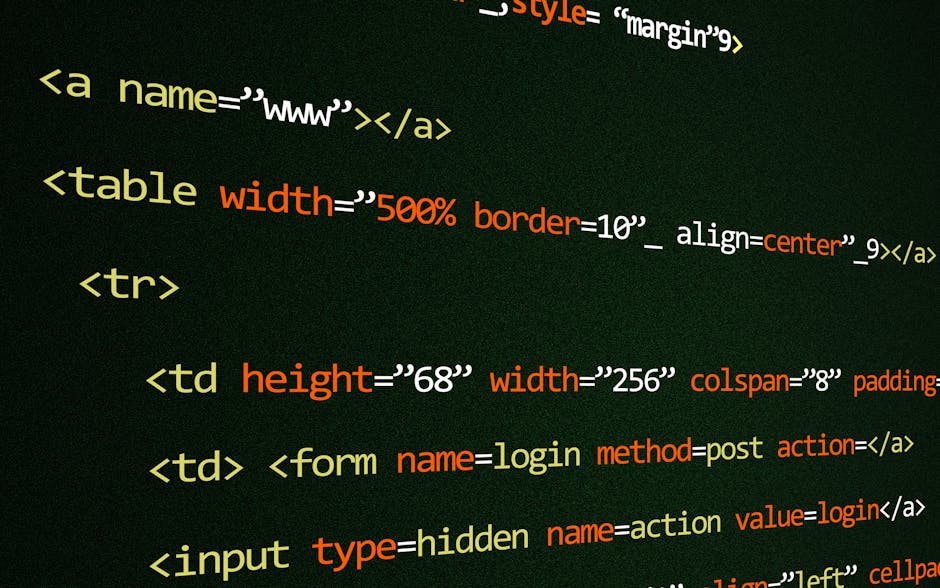
Photo by Pixabay on Pexels
Many input types share these attributes:
* name: Crucial! This is the key used to identify the data when the form is submitted (e.g., username=Alice).
* id: Unique identifier, used by <label for="..."> and for CSS/JavaScript targeting.
* value: The initial value of the input or the value sent for checkboxes/radio buttons.
* placeholder: Hint text shown in the input field before the user types.
* required: Makes the field mandatory. The form won't submit unless it's filled.
* disabled: Makes the field unusable and un-submittable.
Here's a simple flow for how form data usually travels:
graph TD
    A["User Fills Out Form"] --> B["Clicks Submit Button"];
    B --> C{{"<form> action & method"}};
    C --> D["Browser Sends Data"];
    D --> E["Server Receives & Processes Data"];
    E --> F["Server Sends Response (e.g., confirmation page)"];
    F --> A;
3. Worked Example
Let's create a basic contact form with a few different input types.
<!DOCTYPE html>
<html lang="en">
<head>
    <meta charset="UTF-8">
    <meta name="viewport" content="width=device-width, initial-scale=1.0">
    <title>Contact Us</title>
</head>
<body>
    <h1>Contact Us</h1>
    <form action="/submit-contact" method="post">
        <div>
            <label for="fullName">Your Name:</label><br>
            <input type="text" id="fullName" name="fullName" placeholder="John Doe" required>
        </div>
        <br>
        <div>
            <label for="emailAddr">Your Email:</label><br>
            <input type="email" id="emailAddr" name="emailAddr" placeholder="name@example.com" required>
        </div>
        <br>
        <div>
            <label for="subject">Subject:</label><br>
            <select id="subject" name="subject">
                <option value="general">General Inquiry</option>
                <option value="support">Technical Support</option>
                <option value="feedback">Feedback</option>
            </select>
        </div>
        <br>
        <div>
            <label for="message">Your Message:</label><br>
            <textarea id="message" name="userMessage" rows="6" cols="40" placeholder="Type your message here..."></textarea>
        </div>
        <br>
        <div>
            <input type="checkbox" id="consent" name="dataConsent" value="agreed">
            <label for="consent">I agree to the privacy policy</label>
        </div>
        <br>
        <div>
            <button type="submit">Send Message</button>
        </div>
    </form>
</body>
</html>
When a user fills out this form and clicks "Send Message", the browser will send the data (e.g., fullName=Jane+Doe&emailAddr=jane%40example.com&subject=feedback&userMessage=Hello%21&dataConsent=agreed) to the /submit-contact URL using the POST method.
4. Key Takeaways
- HTML forms (
<form>) are the gateway for user input on webpages. - The
actionattribute of<form>dictates where data goes, andmethod(GET/POST) how it's sent. - The
<input>tag is extremely versatile, with its behavior defined by thetypeattribute (text, password, email, number, checkbox, radio, submit). - Always use the
nameattribute on form controls; it's how the submitted data is identified. - Use
<label>withforlinked to an input'sidfor better accessibility and user experience. <textarea>handles multi-line text, and<select>with<option>creates dropdown lists.
Common Mistakes to Avoid:
- Forgetting the name attribute on input elements; the data won't be sent.
- Not linking <label> to its input via for and id, reducing accessibility.
- Using GET method for sensitive data or very long inputs, as it exposes data in the URL.
- Using <input type="submit"> and <button type="submit"> interchangeably when you need a custom button with HTML content inside.
5. Now Try It
Create a simple user registration form. Include fields for:
1. Username (text input, required).
2. Password (password input, required).
3. Email (email input).
4. A choice between two subscription plans (radio buttons, same name).
5. A checkbox to agree to terms and conditions.
6. A submit button.
Make sure every input has a corresponding <label> and the correct name attribute. Your form should look functional, even if it doesn't actually send data anywhere (action="#" is fine for now).
Frequently asked about Introduction to HTML Forms and Input Elements
Study this next
Get the full https://youtu.be/fXxzpkM5Zzo?si=7-WHmhWOKhv110Ow curriculum
Clone the complete plan to your dashboard for unlimited AI-generated notes, practice quizzes, and a personalised revision schedule.
Save this course free