Foundational Office Skills and Computer Basics
From the junior assistant curriculum
Foundational Office Skills and Computer Basics
TL;DR
You'll learn the essential office skills and computer basics needed for most administrative roles, focusing on organization, clear communication, and efficient software use. Mastering these helps you manage tasks, interact professionally, and quickly find information. This groundwork sets you up for success and smooth operations in any office environment.
1. The Mental Model
Think of your office skills as tools in a well-stocked toolbox. Each tool—organization, communication, or a specific software—helps you tackle different parts of your job. Knowing which tool to use and how to use it effectively makes you efficient and reliable.
2. The Core Material
As a junior assistant, you'll be the backbone of efficient office operations. This means understanding how to manage information, communicate effectively, and leverage basic technology.
2.1. Office Organization & Information Management
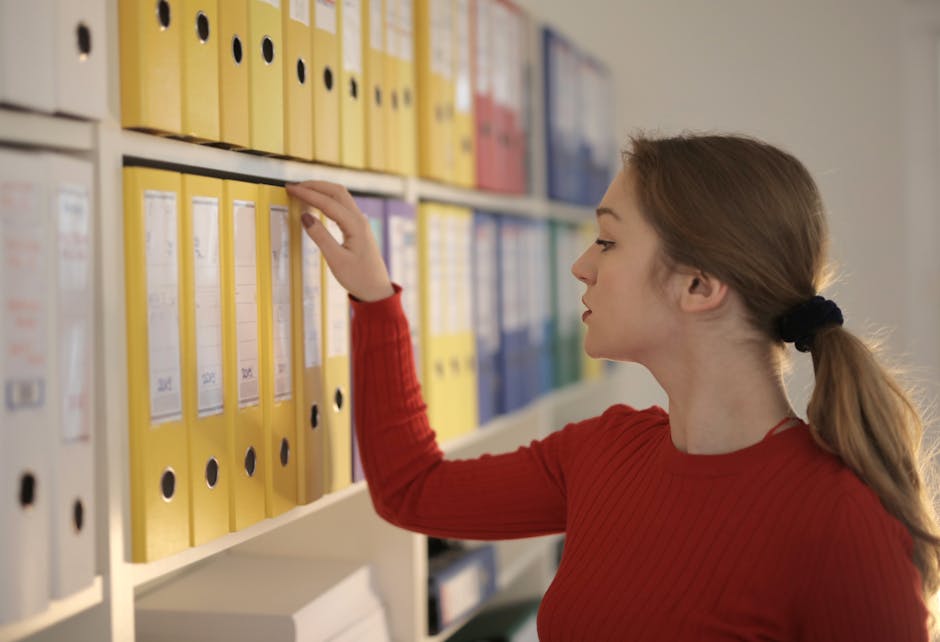
Photo by Andrea Piacquadio on Pexels
Keeping things tidy and accessible isn't just about appearances; it's about efficiency.
- Physical Organization: This includes a clean desk, filing important physical documents logically, and knowing where supplies are.
-
Digital Organization: This is crucial. You'll need to create and maintain clear folder structures, name files consistently, and use digital tools for task tracking.
- Folder Structure: Think broad categories first, then specifics. E.g.,
Projects->Project X->Reports/Correspondence. - File Naming: Consistent naming makes files easy to find. Start with a date for chronological files (e.g.,
YYYY-MM-DD_ReportName.pdf) or a clear project identifier.
- Folder Structure: Think broad categories first, then specifics. E.g.,
2.2. Effective Communication

Photo by Mikhail Nilov on Pexels
It's not just what you say, but how you say it.
- Email Etiquette: Professional emails are concise, clear, and polite. Always use a clear subject line, a proper greeting, and a professional sign-off. Proofread everything.
- Verbal Communication: Whether in-person or on the phone, listen actively, speak clearly, and confirm understanding. Take notes during calls or meetings.
- Documentation: Accurately record meeting minutes, action items, and important decisions. This creates a reliable paper trail.
2.3. Computer Basics & Common Software
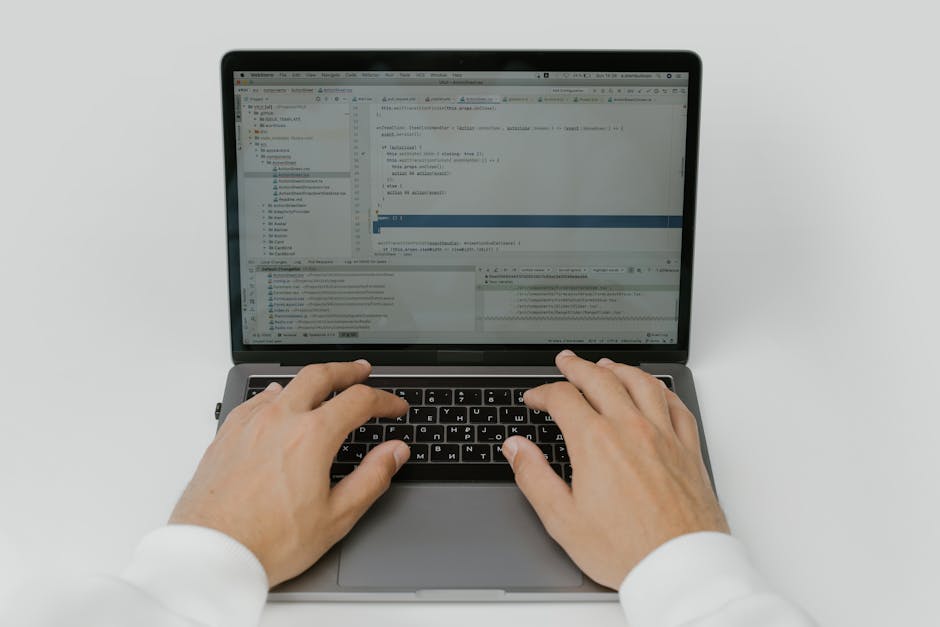
Photo by cottonbro studio on Pexels
You'll spend a lot of time on a computer. Knowing your way around is essential.
- Operating System Navigation (Windows/macOS):
- Files & Folders: Creating, moving, copying, deleting, and searching for files.
- Shortcuts: Learning keyboard shortcuts saves tons of time (e.g.,
Ctrl+Cfor copy,Ctrl+Vfor paste,Alt+Tabto switch windows). - Basic Troubleshooting: Understanding how to restart applications, check network connections, or restart the computer can solve many minor issues.
-
Microsoft Office Suite (or Google Workspace equivalents): These are your daily drivers.
- Word Processing (Word/Docs): Creating and editing documents, formatting text, using templates.
- Spreadsheets (Excel/Sheets): Managing data in rows and columns, basic formulas (SUM, AVERAGE), sorting, and filtering. You'll use this for lists, tracking, and simple calculations.
- Presentations (PowerPoint/Slides): Creating and delivering basic slideshows.
- Email & Calendar (Outlook/Gmail Calendar): Managing your inbox, scheduling meetings, setting reminders.
Here's an overview of how your daily tasks might flow when using these skills:
graph TD
    A["Receive New Task/Request"] --> B{"Is it Digital or Physical?"}
    B -- "Digital" --> C["Open Relevant Software (Email, Word, Excel)"]
    B -- "Physical" --> D["Locate/Prepare Physical Document/Supplies"]
    C --> E["Process Information (Draft, Organize, Calculate)"]
    D --> E
    E --> F{"Is Communication Needed?"}
    F -- "Yes" --> G["Draft Email/Verbal Response"]
    F -- "No" --> H["Save/File Work Accurately"]
    G --> I["Proofread/Review"]
    I --> J["Send/Deliver Communication"]
    J --> H
    H --> K["Mark Task Complete"]
3. Worked Example
Let's say your manager asks you to compile a list of all current project deadlines and contact persons into a single document, then share it with the team.
- Understand the Request: Manager needs a "list of current project deadlines and contacts" for the "team." This implies a clear, easy-to-read format.
- Information Gathering (Digital Organization): You'd likely open your team's shared drive. You know projects are usually in
Shared_Drive/Projects/Current_Year/. You navigate to each project folder, open theProject_Plan.docorProject_Tracker.xlsx, and extract the project name, deadline, and main contact. - Data Compilation (Spreadsheets/Word Processing):
- You decide a spreadsheet is best for lists of data. You open Excel.
- You create columns:
Project Name,Deadline,Contact Person,Contact Email. - You meticulously enter the information you gathered, ensuring accuracy.
- You apply basic formatting: bold column headers, perhaps widen columns so text doesn't get cut off.
- Communication (Email):
- Open Outlook.
- To: You'd add the group email for "the team."
- Subject:
Updated Project Deadlines & Contacts - [Date]. (Clear and concise!) -
Body:
```
Hi Team,Please find attached the updated list of current project deadlines and key contact persons.
Let me know if you have any questions.
Best regards,
[Your Name]
Junior Assistant
`` * **Attachment:** You attach your Excel file. * **Proofread:** Quickly check for typos or missing information. 5. **Final Steps (Digital Organization):** Save your new Excel file in a logical place, probably in aTeam_ResourcesorShared_Documentsfolder, with a clear name:2024-03-15_Project_Deadlines_Contacts.xlsx`.
4. Key Takeaways
- Organized files and folders, both physical and digital, save time and reduce stress.
- Clear, concise, and professional communication (especially email) is vital for teamwork.
- Mastering basic software like Word, Excel, and Outlook will drastically improve your efficiency.
- Keyboard shortcuts are your best friend for speeding up computer tasks.
- Always double-check your work, particularly when sharing information with others.
- Proactive documentation (meeting notes, task lists) prevents misunderstandings and rework.
- Understanding basic computer navigation helps you troubleshoot minor issues independently.
Common Mistakes to Avoid:
- Saving files randomly or using vague file names like "document1.docx".
- Sending emails without a clear subject line or before proofreading.
- Not backing up important work or saving frequently.
- Underestimating the importance of active listening during discussions.
- Panicking over minor computer glitches; often a restart or re-check solves it.
5. Now Try It
Think of a real-world scenario (e.g., managing your weekly groceries, planning a small event for friends). Outline how you would (a) organize the information (list, spreadsheet?), (b) create a clear communication (email, text, physical note?) to inform others, and (c) plan to store the information so it's easy to find later.
What success looks like: You'll have a clear, step-by-step plan that demonstrates logical organization, professional communication, and accessible information storage, just like you would in an office setting.
Frequently asked about Foundational Office Skills and Computer Basics
Get the full junior assistant curriculum
Clone the complete plan to your dashboard for unlimited AI-generated notes, practice quizzes, and a personalised revision schedule.
Create Free Account