Introduction to Python and Setup
From the https://www.youtube.com/live/LEoUuAe9AVU?si=YCkUJ8ab0ahfpQhq curriculum
TL;DR
Python is a versatile programming language that's great for beginners and used in many fields like web development and data science. Before you can write Python code, you need to install Python itself and a good code editor like VS Code. Installing these tools properly sets you up to start coding and running your first programs.
1. The Mental Model
Think of Python as a language your computer understands for giving it instructions. To speak this language, you need the language installed, and a comfortable place (like a notepad) to write your instructions, which Python then translates.
2. The Core Material
You're starting an exciting journey with Python! It's a powerful and popular language known for its readability and wide range of applications. Before you can write any code, you need to set up your computer to understand and run Python programs. This involves installing Python itself and a good code editor.
Why Python?

Photo by Diana ✨ on Pexels
Python's popularity isn't just hype. It's used for:
* Web development: Building websites and web applications (e.g., Django, Flask).
* Data science and machine learning: Analyzing data, creating AI models (e.g., NumPy, Pandas, TensorFlow).
* Automation: Writing scripts to automate repetitive tasks.
* Game development: Creating simple games.
* Scientific computing: Research and academic applications.
Its simple syntax (how you write the code) makes it relatively easy for beginners to learn compared to other languages.
Installing Python
Photo by Diana ✨ on Pexels
The first step is to get Python installed on your computer.
- Download: Go to the official Python website: python.org.
- Choose Version: Pick the latest stable version (e.g., Python 3.10.x or 3.11.x). Always go with Python 3; Python 2 is outdated.
- Installer: Download the appropriate installer for your operating system (Windows, macOS).
- Run Installer:
- Crucially for Windows: During installation, make sure to check the box that says "Add Python to PATH". This lets your computer find Python from anywhere. For macOS, this is often handled automatically.
- Follow the prompts, usually clicking "Next" or "Continue" and accepting the defaults.
Verifying Python Installation

Photo by Zulfugar Karimov on Pexels
After installing, you can check if it worked by opening your terminal or command prompt:
python --version
or sometimes:
python3 --version
You should see something like Python 3.10.12 (the exact version number will vary). If you get an error like "command not found," it means Python isn't correctly added to your system's PATH, and you might need to reinstall, ensuring you checked the "Add Python to PATH" box.
Choosing Your Code Editor: VS Code
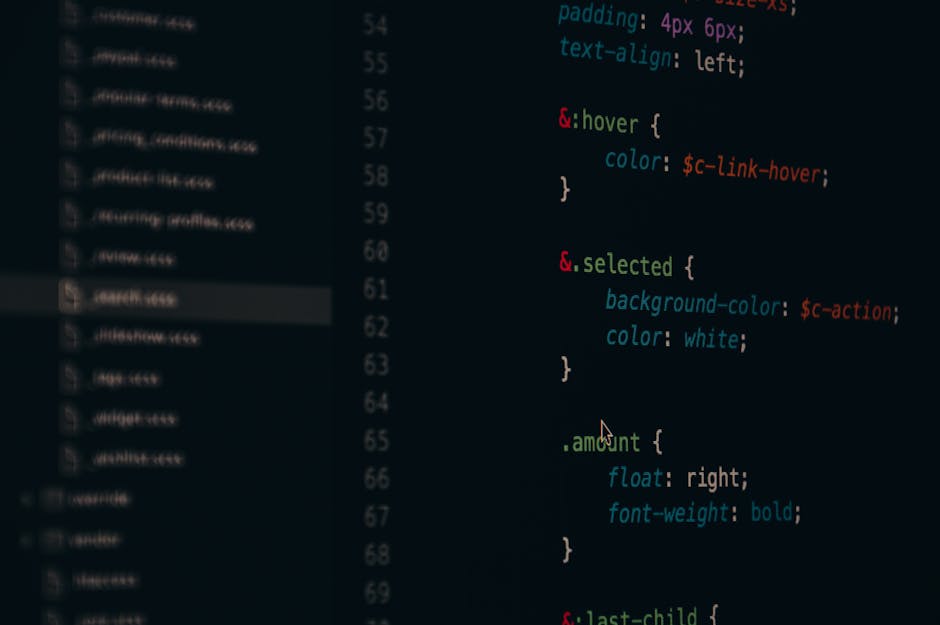
Photo by Pixabay on Pexels
While you can write Python in a simple text editor, a "code editor" provides many helpful features. Visual Studio Code (VS Code) is a popular choice because it's free, powerful, and has great Python support.
- Download VS Code: Go to the official VS Code website: code.visualstudio.com.
- Install: Download and run the installer for your operating system. Follow the default installation steps.
- Install Python Extension: Once VS Code is open, click on the Extensions icon (it looks like four squares on the left sidebar). Search for "Python" and install the official Microsoft Python extension. This extension gives VS Code smart features for Python, like code suggestions and debugging.
Here's the process for setting up your development environment:
graph TD
    A["Decide to learn Python"] --> B["Visit python.org"];
    B --> C{"Download Python Installer (Latest 3.x)"};
    C --> D["Run Installer"];
    D --> E{For Windows: "Add Python to PATH" -> True};
    E --> F["Complete Python Installation"];
    F --> G["Open Terminal/CMD"];
    G --> H["Type: python --version or python3 --version"];
    H --> I{"Python Version Shows?"};
    I --> J{No};
    J --> K["Troubleshoot PATH / Reinstall Python"];
    I --> L{Yes};
    L --> M["Visit code.visualstudio.com"];
    M --> N["Download VS Code Installer"];
    N --> P["Install VS Code"];
    P --> Q["Open VS Code"];
    Q --> R["Go to Extensions (left sidebar)"];
    R --> S["Search 'Python'"];
    S --> T["Install Microsoft's Python Extension"];
    T --> U["Your Python Development Environment is Ready!"];
    K --> A;
Writing Your First Python Code
With Python and VS Code set up, let's write a simple program:
- Create a Folder: Make a new folder on your computer for your Python projects, e.g.,
my_python_projects. - Open in VS Code: In VS Code, go to
File > Open Folder...and select your new folder. - New File: Click the "New File" icon in the Explorer panel (top left of VS Code, looks like a page with a plus sign) and name it
hello.py. The.pyextension tells VS Code it's a Python file. -
Write Code: Type the following into
hello.py:python print("Hello, Python learner!") -
Run Code: You have a few ways to run this:
- VS Code Terminal: Go to
Terminal > New Terminalin VS Code. This opens a command prompt within VS Code. Typepython hello.pyand press Enter. - Run Button: VS Code usually shows a small "Run" button (a green triangle) in the top-right corner or next to
printstatements. Click it to run your script.
- VS Code Terminal: Go to
You should see Hello, Python learner! printed in the terminal. Congratulations, you've run your first Python program!
3. Worked Example
Let's walk through the full process of installing Python, VS Code, and running a simple script to calculate the area of a rectangle.
- Install Python: You navigate to python.org/downloads, find the latest stable Python 3.x version (say, 3.11.5 for Windows), and download the installer. You run the installer, and crucially, you check the box next to "Add Python to PATH" before clicking "Install Now."
- Verify Python: After installation, you open your Windows Command Prompt (or macOS Terminal) and type
python --version. The output isPython 3.11.5. Perfect. - Install VS Code: You go to code.visualstudio.com, download the Windows installer, and run it, accepting all the defaults.
- Install Python Extension: You open VS Code. On the left sidebar, you click the Extensions icon. In the search bar, you type "Python" and hit Enter. You click on the extension published by Microsoft and click the "Install" button.
- Create Project Folder: You create a folder named
my_first_pythonon your desktop. - Open in VS Code: In VS Code, you go to
File > Open Folder..., navigate to your desktop, and selectmy_first_python. - Create Python File: Inside VS Code, in the Explorer panel (left side), you click the "New File" icon. You type
rectangle_area.pyas the filename and press Enter. -
Write and Run Code: You type the following code into
rectangle_area.py:```python
This program calculates the area of a rectangle
length = 10
width = 5
area = length * widthprint("The length of the rectangle is:", length)
print("The width of the rectangle is:", width)
print("The area of the rectangle is:", area)
``
Then, you open the integrated terminal in VS Code (
Terminal > New Terminal). In the terminal, you typepython rectangle_area.py` and press Enter.The output in the terminal appears as:
The length of the rectangle is: 10
The width of the rectangle is: 5
The area of the rectangle is: 50
You've successfully set up your environment and run a Python script!
4. Key Takeaways
- Python is a popular, easy-to-read language used for many purposes, from web development to data science.
- You must install Python itself on your computer before you can run any Python code.
- Always choose the latest Python 3.x version and ensure "Add Python to PATH" is selected during Windows installation.
- VS Code is a powerful and free code editor that enhances your Python coding experience.
- Install the official Microsoft Python extension in VS Code for features like code highlighting and intelligent suggestions.
- You can verify a successful Python installation by running
python --versionin your terminal. - Run Python scripts by navigating to their directory in the terminal and typing
python your_script_name.py.
Common Mistakes to Avoid
- Forgetting to "Add Python to PATH" during Windows installation, leading to "command not found" errors.
- Trying to install Python 2; always use Python 3.
- Opening Python files directly without a code editor, or trying to run them by double-clicking (which often won't work as expected).
- Not installing the Python extension in VS Code, which loses many helpful code editing features.
- Getting overwhelmed by setting everything up; take it one step at a time and verify each stage.
5. Now Try It
Your mission: Install Python and VS Code on your computer, making sure everything is set up correctly.
What to do:
1. Uninstall any previous, possibly broken, Python installations you might have.
2. Follow the steps in section 2.2 to download and install the latest Python 3.x version for your operating system, paying close attention to the "Add Python to PATH" step if you're on Windows.
3. Open your terminal/command prompt and verify the installation by running python --version. If it doesn't work, troubleshoot using section 2.3 or reinstall.
4. Download and install VS Code.
5. Open VS Code and install the official Microsoft Python extension from the Extensions marketplace.
6. Create a new folder on your desktop called my_first_program.
7. Open that folder in VS Code.
8. Create a new file named my_info.py inside that folder.
9. Add the following code to my_info.py and save it:
```python
name = "Your Name" # Replace
Frequently asked about Introduction to Python and Setup
Study this next
Get the full https://www.youtube.com/live/LEoUuAe9AVU?si=YCkUJ8ab0ahfpQhq curriculum
Clone the complete plan to your dashboard for unlimited AI-generated notes, practice quizzes, and a personalised revision schedule.
Save this course free